Looking to use a USB mouse on your Commodore Amiga? Whether you’re restoring an A500, upgrading an A1200, or using an Amiga with modern accessories, switching to a USB mouse can dramatically improve precision, comfort, and reliability.
In this guide, we’ll explain:
-
✅ How Amiga mouse ports work
-
✅ What you need to connect a USB mouse
-
✅ Compatibility tips (wired & wireless)
-
✅ Common problems and how to fix them
-
✅ The best type of USB mouse for Amiga systems
Why Upgrade to a USB Mouse on the Amiga?
Original Amiga tank mice are iconic — but they often suffer from:
-
Worn microswitches
-
Dirty or failing ball mechanisms
-
Poor tracking compared to modern optical sensors
-
Limited availability of good-quality replacements
Using a USB optical mouse with an Amiga-compatible adapter gives you:
-
Smoother tracking
-
Higher precision in Workbench and games
-
Scroll wheel support (on compatible adapters)
-
Easy replacement if the mouse fails
For many Amiga users, this is one of the simplest and most noticeable upgrades.
How the Amiga Mouse Port Works
The Commodore Amiga uses a DB9 (9-pin) mouse port that reads quadrature signals rather than USB data.
-
You cannot plug a USB mouse directly into the Amiga.
-
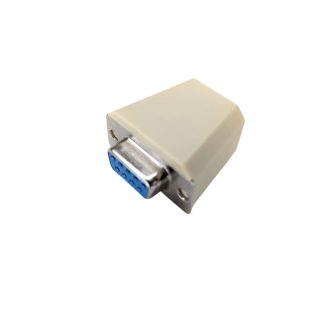
A dedicated USB to Amiga mouse adapter is required.
-
The adapter converts USB movement data into signals the Amiga understands.
This applies to:
-
Amiga 500 and A500 Plus
-
Amiga 600
-
Amiga 1200
-
Desktop Case Amiga’s 1000 15000 2000 3000 4000
-
Amiga CD32
What You Need to Connect a USB Mouse to an Amiga
To use a modern mouse on your Amiga, you will need:
-
A USB to Amiga mouse adapter
-
A compatible USB mouse (wired is recommended)
-
Your Amiga computer with a working mouse port

Best USB Mouse Types for Amiga
Not all USB mice behave the same way when used with adapters.
✅ Recommended
-
Standard wired USB optical mice
-
3-button mice
-
Basic plug-and-play models (no software required)
Step-by-Step: Connecting a USB Mouse to an Amiga
Turn off your Amiga First
-
Connect the adapter to the Amiga mouse port.
-
Plug your USB mouse into the adapter.
-
Power on your Amiga.
-
Test movement in Workbench.
Most adapters are plug-and-play and require no additional software.
If your adapter supports scroll wheel or additional buttons, check whether a driver or tool is required, the TruScroll Adapter needs the driver installed, see link below for install instructions :
Commodore Amiga Scroll Wheel Mouse Setup: Easy Driver Installation Guide
Troubleshooting USB Mouse Problems on Amiga
Mouse not detected?
-
Try a different USB mouse, the amiga is limited to how much current it can supply from the mouse port most mice work fine, but high end gaming mice or mice with RGB lighting may need too much current – best to stick with standard mice or wireless mice like the Logitech MX Series
Can You Use a Wireless Mouse on an Amiga?
Yes — but with limitations.
Some USB wireless dongle mice work well. However:
-
Bluetooth mice only work if the adapter supports Bluetooth.
-
Recommended to use a Logitech MX series, or any Logitech wireless mouse that uses the Unifying USB Receiver – these are fully compatible with the TruMouse and TruScroll mouse adapters
Is a USB Mouse Better Than an Original Amiga Mouse?
For everyday Workbench use — absolutely.
For retro authenticity — that’s personal preference.
Many users keep an original tank mouse for nostalgia but use a modern optical USB mouse for regular operation and less maintenance
Final Thoughts: Modern Comfort for a Classic Machine
Upgrading to a USB mouse on your Commodore Amiga is one of the easiest ways to improve usability while preserving the classic experience.
With the right adapter and a compatible mouse, you’ll enjoy:
-
Smoother tracking
-
Better precision
-
Easy replacements
-
Long-term reliability
If you’re looking for a reliable solution designed specifically for Amiga systems, check out our compatible adapters here: