Posted on

Apple ADB to USB Adapter: Use Vintage Macintosh Keyboards & Mice on Modern Computers

Use Your Classic Apple ADB Keyboard and Mouse on a Modern Computer

If you still have a soft spot for classic Macintosh computers, chances are you’ve got some vintage Apple hardware tucked away somewhere — perhaps an Apple Extended Keyboard II, an ADB mouse, or another classic Macintosh keyboard that simply feels better to type on than most modern alternatives.

The problem is that Apple ADB keyboards and mice were designed for an era long before USB became the standard.

Modern Macs and PCs don’t have an ADB port, leaving many excellent vintage Apple peripherals sitting unused.

Fortunately, there’s a simple solution: an Apple ADB to USB adapter that allows you to connect classic ADB keyboards and mice to modern computers via USB.

What Is Apple ADB?

ADB, or Apple Desktop Bus, was Apple’s proprietary peripheral interface used throughout much of the classic Macintosh era.

Introduced in the 1980s, ADB allowed keyboards, mice and other compatible peripherals to connect to a Macintosh using a relatively simple four-pin connection.

ADB was particularly common on Macintosh computers from the late 1980s through the 1990s, including many popular models such as the Macintosh II series, Quadra, Performa and Power Macintosh.

The technology was eventually replaced by USB as Apple moved towards newer generations of hardware.

While ADB is now considered obsolete, the keyboards and mice designed for it remain highly desirable among collectors, retro-computing enthusiasts and anyone who appreciates classic Apple hardware.

Why Use a Vintage Apple ADB Keyboard Today?

There’s something special about typing on a classic Apple keyboard.

The Apple Extended Keyboard and Apple Extended Keyboard II, for example, have developed a loyal following among enthusiasts because of their solid construction, distinctive key feel and unmistakable Macintosh-era design.

Rather than keeping these keyboards connected to a vintage Macintosh, an ADB to USB adapter lets you use them with a modern computer.

That means you can enjoy your favourite vintage keyboard with:

  • Modern Windows PCs
  • Modern Macs
  • Linux computers
  • Raspberry Pi systems
  • Retro-computing projects
  • USB-equipped laptops and desktops
  • Modern computers used alongside vintage Macintosh hardware

It’s an easy way to give an old Apple keyboard a new lease of life.

Connect a Classic ADB Mouse to a Modern PC or Mac

The same applies to vintage Apple ADB mice.

If you’ve got an original Macintosh mouse sitting in a drawer, an ADB to USB mouse adapter can make it useful again.

Instead of needing a vintage Macintosh simply to use your old mouse, you can connect it directly to a modern computer using USB.

This can be particularly useful for retro-computing enthusiasts who want to recreate the look and feel of a classic Macintosh setup while using modern hardware behind the scenes.

A Great Alternative to the Griffin iMate

For many years, one of the best-known solutions for connecting ADB peripherals to USB was the Griffin iMate.

The iMate became popular because it provided a straightforward way to connect classic Apple ADB keyboards and mice to computers with USB ports.

Unfortunately, the Griffin iMate is now discontinued and can be difficult to find. As a result, working examples can command surprisingly high prices on the second-hand market.

That’s where a modern ADB to USB adapter can be a useful alternative.

If you don’t want to spend a premium hunting down a Griffin iMate, an alternative ADB-to-USB solution gives you a practical way to bring your classic Apple peripherals back into everyday use.

Griffin iMate vs ADB to USB Adapter

Feature Griffin iMate Modern ADB to USB Adapter
Connects ADB peripherals Yes Yes
USB connection Yes Yes
Works with classic Apple keyboards Yes Designed for ADB keyboards
Works with ADB mice Yes Designed for ADB mice
Discontinued Yes Available as a modern solution
Suitable for retro-computing Yes Yes
Useful with modern computers Yes Yes

The biggest advantage is simple: you don’t need to rely on finding a used Griffin iMate in good working condition.

Bring Your Apple Extended Keyboard II Back to Life

The Apple Extended Keyboard II is one of the most recognisable keyboards from Apple’s classic Macintosh era.

Its distinctive design makes it a popular choice for vintage Apple collectors, mechanical keyboard enthusiasts and retro-computing fans.

But owning one today raises an obvious question:

How do you connect an Apple Extended Keyboard II to a modern computer?

The answer is an ADB to USB adapter.

Simply connect the ADB plug from the keyboard to the adapter, then connect the adapter to your computer’s USB port.

You can then use your vintage Apple keyboard without needing to track down an old Macintosh just to provide the correct interface.

Perfect for Retro Computing

ADB to USB adapters are particularly useful for anyone building or maintaining a retro-computing setup.

You might have a collection of original Macintosh hardware but also use a modern PC for everyday tasks, development or emulation.

Being able to switch your vintage peripherals between systems gives you much more flexibility.

They’re also useful for:

Vintage Apple restoration
Restore the appearance and feel of a classic Macintosh setup while using modern hardware where appropriate.

Macintosh emulation
Use an authentic Apple keyboard with an emulator running on a modern PC or Mac.

Retro gaming
Classic Apple keyboards and mice can add an authentic feel to retro-computing and gaming projects.

Everyday computing
If you simply love the feel of your vintage Apple keyboard, there’s no reason it has to remain connected to a vintage computer.

Hardware preservation
Using an adapter can allow you to keep your original Macintosh hardware safely stored while still enjoying the peripherals themselves.

Why Not Just Buy a Modern USB Keyboard?

You certainly could — but that’s missing the point.

Retro computing isn’t just about functionality. It’s about the experience.

A modern USB keyboard might be faster, thinner and packed with features, but it doesn’t have the same character as a keyboard from the classic Macintosh era.

For collectors, using original hardware is part of the enjoyment.

There’s also something satisfying about taking a peripheral that was designed decades ago and making it work with a computer released many years later.

ADB to USB: Giving Vintage Hardware a Second Life

One of the great things about retro computing is discovering that old technology doesn’t necessarily have to become obsolete.

Classic Apple ADB keyboards and mice are still perfectly usable pieces of hardware. They simply use an interface that modern computers no longer provide.

An ADB to USB adapter bridges that gap.

Instead of searching for an increasingly rare Griffin iMate, you can use a modern adapter to connect your classic Apple ADB peripherals to a contemporary USB-equipped computer.

It’s a small piece of hardware that can make a huge difference to the usability of your vintage Apple collection.

Ready to Connect Your ADB Keyboard or Mouse?

If you’ve got a classic Apple ADB keyboard or mouse gathering dust, now is the perfect time to put it back to work.

Our Vintage Apple ADB to USB Mouse and Keyboard Adapter is designed for retro-computing enthusiasts who want to connect classic Apple ADB peripherals to modern USB computers.

Whether you’re looking for a Griffin iMate alternative, want to use an Apple Extended Keyboard II with a modern PC, or simply want to keep your original Macintosh mouse in regular use, an ADB to USB adapter provides a convenient bridge between classic Apple hardware and today’s computers.

Don’t let a missing ADB port keep your favourite vintage Apple peripherals in the cupboard. Connect them to your modern computer and keep the classic Macintosh experience alive.

Posted on

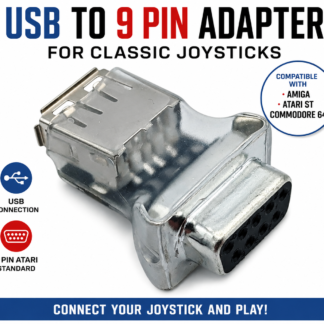
USB to 9 Pin Joystick Adapter for Amiga, Atari ST & C64

USB to 9-Pin Joystick Adapter for Amiga, Atari ST & Commodore 64

Looking for a way to use a modern USB joystick with a classic computer? This USB to 9-pin joystick adapter is designed to connect compatible USB joysticks and controllers to classic computers that use the Atari-style 9-pin joystick interface.

It is ideal for retro-computing enthusiasts who own systems such as the Commodore 64, Amiga or Atari ST and want an alternative to finding an original vintage joystick.

Connect a USB Joystick to a Classic Computer

Classic computers were designed long before USB became the standard controller connection. Many popular machines from the 1980s and 1990s used the familiar 9-pin Atari-style joystick interface.

Today, original joysticks can be difficult to find, and many surviving controllers have suffered from decades of use.

This adapter provides a practical way to bridge the gap between modern USB controllers and compatible classic computers.

The basic setup is:

USB Joystick → USB to 9-Pin Adapter → Classic Computer

The adapter converts the connection from a compatible USB joystick into the Atari-style 9-pin joystick interface used by compatible classic systems.

Compatible Classic Computers

This USB joystick adapter is designed for compatible systems using the Atari-style 9-pin joystick standard, including:

  • Commodore 64 (C64)
  • Commodore 128
  • Amiga computers
  • Atari ST
  • Other compatible classic computers using the appropriate 9-pin joystick interface

Compatibility can depend on the USB joystick or controller being used, so please check your particular controller and computer before purchasing.

USB Joystick Adapter for Amiga

The Amiga remains one of the most popular classic computers for retro gaming.

If your original Amiga joystick has become worn, unreliable or difficult to replace, a compatible USB joystick combined with this adapter can provide another option.

Instead of searching for an original vintage controller, you can use a compatible modern USB joystick while continuing to enjoy your original Amiga hardware.

Whether you are restoring an Amiga or simply returning to classic games, this adapter can help connect modern controller hardware to compatible classic joystick ports.

USB Joystick Adapter for Atari ST

The Atari ST is another classic computer that used the familiar 9-pin joystick connection.

If you are looking for an Atari ST joystick replacement or want to experiment with a modern USB controller, this adapter provides a convenient connection between compatible USB controllers and the Atari-style joystick interface.

It can be particularly useful for retro-computing enthusiasts restoring an Atari ST or maintaining a vintage gaming setup.

USB Joystick Adapter for Commodore 64

The Commodore 64 has one of the largest libraries of classic joystick-based games ever produced.

From arcade games and shoot-’em-ups to platformers and sports games, the joystick is an essential part of the C64 gaming experience.

If you need a C64 joystick replacement, an original joystick is not your only option.

A compatible USB joystick together with this USB-to-9-pin adapter can provide a modern controller solution while allowing you to continue using your original Commodore 64.

What Is an Atari-Style 9-Pin Joystick?

The Atari-style 9-pin joystick connector became one of the most widely recognised controller connections used by classic computers and gaming systems.

It is commonly associated with systems such as:

  • Atari computers
  • Atari ST
  • Commodore 64
  • Commodore 128
  • Amiga
  • Other classic computers and consoles using compatible joystick interfaces

This is why you may see people searching for terms such as Atari 9-pin joystick, 9-pin joystick adapter, C64 joystick, Amiga joystick, Atari ST joystick or retro computer joystick.

However, having a 9-pin connector does not automatically guarantee compatibility. Different machines can use similar connectors in different ways, so always check compatibility with your specific system.

Why Use a USB Joystick With an Old Computer?

Original vintage joysticks are great for authenticity, but they have been around for decades.

A vintage joystick may have:

  • Worn switches
  • Damaged cables
  • Broken buttons
  • Intermittent connections
  • Stiff controls
  • Loose controls
  • General signs of age

Replacement vintage joysticks can also be difficult to find.

Using a compatible USB controller gives retro gamers another option.

You can keep your original classic computer while using a readily available modern controller.

That makes this adapter useful for anyone who wants to combine the convenience of modern USB hardware with the charm of classic computing.

A Useful Adapter for Retro Gaming

This USB-to-9-pin adapter can be useful for:

  • Commodore 64 owners
  • Commodore 128 owners
  • Amiga owners
  • Atari ST owners
  • Retro gamers
  • Vintage computer collectors
  • Classic computer restorers
  • Retro-gaming setups
  • Anyone looking for a joystick for an old computer
  • Anyone looking for an alternative to a vintage 9-pin joystick

If you have an old computer sitting in storage because you no longer have a working joystick, an adapter like this may provide another way to get your system back into action.

How to Connect a USB Joystick to a Classic Computer

The connection is straightforward for compatible equipment.

Step 1 — Connect your USB joystick

Connect your compatible USB joystick or controller to the USB connection on the adapter.

Step 2 — Connect the 9-pin plug

Connect the adapter to the appropriate joystick port on your compatible classic computer.

Step 3 — Start your computer

Turn on your computer and test the joystick using a compatible game or software.

The exact behaviour will depend on the USB controller, computer and software being used.

Looking for a Joystick for an Old Computer?

If you have searched for:

“joystick for Commodore 64”

“joystick for Amiga”

“joystick for Atari ST”

“USB joystick for old computer”

“C64 joystick replacement”

“Atari 9 pin joystick adapter”

“Amiga joystick adapter”

or

“USB to 9 pin joystick adapter”

then this type of adapter may be exactly what you need.

Rather than replacing or modifying your classic computer, the adapter is designed to provide a connection between a compatible modern USB controller and a compatible Atari-style 9-pin joystick port.

What Should I Check Before Buying?

Before purchasing, check the following:

1. Check your computer

Make sure your computer has a compatible Atari-style 9-pin joystick interface.

2. Check your USB joystick

Not every USB controller is identical. Different controllers can have different button layouts, input configurations and functions.

Make sure your USB joystick is compatible with the adapter.

3. Check your intended use

Think about the games and software you want to use.

Classic games can rely on specific joystick inputs, so make sure the controller and adapter combination provides the functions required by your system.

4. Check your exact model

“Amiga”, “Atari” and “Commodore” cover many different computers and configurations.

If you have an unusual model, check the specifications carefully before ordering.

Frequently Asked Questions

Can I use a USB joystick on a Commodore 64?

A compatible USB joystick can be connected to a compatible Commodore 64 through a suitable USB-to-9-pin joystick adapter. The adapter is designed around the Atari-style 9-pin joystick interface.

Can I connect a USB joystick to an Amiga?

Yes, the adapter is designed for compatible USB joysticks and classic computers using the appropriate 9-pin joystick interface, including compatible Amiga systems.

Can I use a USB joystick on an Atari ST?

The adapter is designed to connect compatible USB controllers to systems using the Atari-style 9-pin joystick standard, including compatible Atari ST systems.

Is this a USB-to-serial adapter?

No.

This is a USB joystick adapter designed specifically around the Atari-style 9-pin joystick interface. It is not intended to function as a general-purpose USB-to-serial converter.

Does it work with every USB joystick?

No USB controller can be assumed to be universally compatible.

USB joysticks and controllers can use different configurations and features, so check compatibility before purchasing if you are using an unusual or specialised controller.

Do I need to modify my Amiga, Atari ST or Commodore 64?

The adapter is designed to provide the required connection between a compatible USB joystick and compatible classic computer joystick ports. It is intended as an external adapter rather than requiring internal modification of the computer.

Modern USB Controllers Meet Classic Computers

One of the best things about retro computing is that you don’t necessarily have to choose between original hardware and modern convenience.

Your Commodore 64, Amiga or Atari ST can remain at the centre of your retro-gaming setup while a compatible USB joystick provides the controls.

This USB to 9-pin joystick adapter helps bridge the gap between two generations of hardware.

Modern USB joystick + USB to 9-pin adapter + classic computer = another way to enjoy retro gaming.

Keep Your Classic Computer Playing

Vintage computers such as the Commodore 64, Amiga and Atari ST continue to have passionate communities around the world.

As these machines become older, finding replacement accessories can become increasingly difficult.

A USB-to-9-pin joystick adapter provides a practical option for retro gamers who want to use compatible modern USB controllers with classic computers.

Whether you are restoring an old machine, replacing a failed joystick or building a modern retro-gaming setup, this adapter can help you connect compatible USB controller hardware to the classic Atari-style 9-pin joystick interface.

Keep your classic computer. Keep playing your classic games.

USB to 9-Pin Joystick Adapter — designed for compatible Amiga, Atari ST, Commodore 64 and other classic systems using the Atari-style 9-pin joystick standard.

Posted on

How to Use a USB Keyboard with the Commodore Amiga | Amiga USB Keyboard Adapter Guide

If you own a classic Commodore Amiga, you already know how iconic—and sometimes fragile—the original hardware can be. One of the most common issues retro enthusiasts face is a failing or missing original keyboard.

The good news? You can easily use a modern USB keyboard with your Amiga using an Amiga USB Keyboard Adapter. In this guide, we’ll explain how it works, why you might want one, and how to set it up.


Why Use a USB Keyboard with the Commodore Amiga?

Original Amiga keyboards are becoming harder to find, more expensive, and prone to wear after decades of use. Switching to a USB keyboard offers several advantages:

  • ✅ Easy replacement if damaged

  • ✅ Affordable and widely available

  • ✅ Modern mechanical or compact keyboard options

  • ✅ Improved reliability

  • ✅ No need to repair aging membrane contacts

Whether you’re using an Amiga for gaming, demos, music production, or development, a USB keyboard can make your setup more practical without sacrificing the classic experience.


What Is an Amiga USB Keyboard Adapter?

An Amiga USB Keyboard Adapter is a small hardware device that connects between your Amiga computer and a standard USB keyboard.

It works by:

  1. Reading USB keyboard signals

  2. Converting them into native Amiga keyboard protocol

  3. Sending the correct signals to the Amiga’s keyboard port

This allows your Amiga to treat the USB keyboard just like an original one.


Compatible Amiga Models

Most adapters are designed to work with popular models such as:

  • Amiga 1200

  • Amiga 1500

  • Amiga 2000

  • Amiga 3000
  • Amiga 4000 and CD32 Console

(You can insert your exact compatibility list here.)


How to Use a USB Keyboard with the Commodore Amiga

Setting up your Amiga USB Keyboard Adapter is typically straightforward:

Step 1: Power Off Your Amiga

Always turn off your system before connecting any hardware.

Step 2: Connect the Adapter

Plug the adapter into the Amiga’s keyboard port or internal connector (depending on your model).

Step 3: Connect Your USB Keyboard

Plug any standard USB keyboard into the adapter.

Step 4: Power On

Turn your Amiga back on. The keyboard should be detected automatically.

Most adapters require no drivers or configuration — they work instantly at boot, even in early startup menus and Kickstart screens.


Key Mapping and Special Keys

Some adapters include:

  • Amiga-specific key remapping (Help, Amiga keys, etc.)

  • Reset the amiga from the keyboard with the key combination CTRL + Left Windows + Right Windows
  • Alternative reset keys are : CTRL + ALT + ESC for keyboard that down have windows or menu key

Be sure to mention in your product description if your adapter supports:

  • Multiple keyboard layouts (US, UK )


Choosing the Right USB Keyboard

Not all USB keyboards are created equal. For the best experience:

  • Avoid wireless keyboards unless supported

  • Choose standard USB HID keyboards

  • Mechanical keyboards work great

  • Compact TKL keyboards are popular for retro desks

If your adapter supports hubs, you can also mention that as a feature.


Who Is This Adapter For?

An Amiga USB Keyboard Adapter is perfect for:

  • Retro gaming enthusiasts

  • Demo scene fans

  • Amiga developers

  • Users with damaged original keyboards

  • People building modernized Amiga setups

It’s also ideal if you want to preserve your original keyboard and reduce wear.


Keep Your Amiga Alive with Modern Convenience

The Commodore Amiga remains one of the most beloved retro computing platforms ever created. With a simple Amiga USB Keyboard Adapter, you can combine modern reliability with classic computing.

If you’d like to modernize your setup or replace a faulty keyboard with a modern USB upgrade, this is one of the easiest and most practical upgrades available as amiga external keyboards are now getting hard to find in good working order, the trumouse USB adapter offer a low cost solution.