Posted on

BlueCube USB Gamepad Adapter for Amiga, Atari ST & C64

*** Coming Soon ***

BlueCube USB Gamepad & Joystick Adapter: Use Modern USB Controllers on Amiga, Atari ST & Commodore 64

Want to use a modern USB gamepad with your classic Amiga, Atari ST or Commodore 64? Meet BlueCube — the USB Gamepad & Joystick Adapter designed to bring modern USB controller compatibility to classic computers with a compatible 9-pin Atari-style joystick port.

Featuring plug-and-play operation, broad compatibility with standard USB HID game controllers and a unique controller-learning mode, BlueCube gives retro gaming enthusiasts more freedom to choose how they play their favourite classic games.

But what really makes BlueCube stand out is its ability to learn the controls of compatible USB gamepads it doesn’t initially recognise. Combined with three fire functions, including a dedicated jump-button option for classic platform games, BlueCube offers more than a conventional joystick adapter.

Whether you’re revisiting legendary Amiga games, enjoying Atari ST classics or returning to the 8-bit era of the Commodore 64, BlueCube is designed to make your retro gaming setup more flexible.

What Is the BlueCube USB Gamepad & Joystick Adapter?

BlueCube is a USB game controller adapter that allows compatible standard USB HID gamepads to work with classic computers that use a compatible 9-pin Atari-style joystick interface.

Supported systems include:

  • Commodore Amiga — enjoy classic 16-bit games with compatible USB gamepads.
  • Atari ST — bring alternative controller options to your Atari gaming setup.
  • Commodore 64 — explore new controller possibilities for classic 8-bit gaming.
  • Other compatible systems — use supported USB controllers with computers featuring compatible 9-pin Atari-style joystick ports.

Rather than being restricted to original joysticks or a single controller model, BlueCube lets you use many standard USB HID game controllers, giving you more choice over the way you play.

And thanks to its unique learning mode, BlueCube can learn the required inputs of compatible controllers that it doesn’t initially recognise.

Unique Controller-Learning Mode — Teach BlueCube to Recognise Your Gamepad

One of BlueCube’s biggest selling points is its unique ability to learn the controls of an unrecognised compatible USB game controller.

Many joystick adapters rely on predefined mappings or a limited selection of supported controllers. BlueCube takes a more flexible approach by allowing you to teach it the controls of a compatible USB HID gamepad using a simple sequence of directional and fire-button inputs.

This means you aren’t necessarily limited to controllers that BlueCube recognises straight out of the box.

How Does BlueCube’s Learning Mode Work?

BlueCube uses a straightforward learning sequence. When learning mode is activated the LED will light and stay on , the cube is waiting for the following sequence, if you make a mistake turn off and start again, once all 7 presses have been made the cube will flash to show config is now been saved – the cube can store upto 5 controllers, if you lean another controller it will overwrite the oldest controller settings.

Up → Down → Left → Right → Fire 1 → Fire 2 → Fire 3

By entering this sequence, you teach BlueCube which controls correspond to the required joystick directions and fire functions.

Once the compatible controller has been learned, you can use it with your classic computer, making it easier to experiment with different standard USB gamepads and their button layouts.

The learning mode is especially useful for retro gamers who already own several USB controllers or want the freedom to choose a gamepad that feels comfortable in their hands.

Why Is the Learning Mode Such a Big Advantage?

USB game controllers come in many shapes and sizes. Button layouts vary between manufacturers, and some controllers may not be recognised using a conventional fixed mapping.

BlueCube’s learning mode is designed to make controller compatibility more flexible and also allows the use to choose the best buttom mapping

  • Learn unfamiliar controllers: Teach BlueCube the required inputs of compatible USB HID gamepads it doesn’t initially recognise.
  • Choose your preferred gamepad: Enjoy greater freedom to use a controller that suits your hands and playing style.
  • Configure three fire functions: Identify the controls used for primary fire, secondary fire and the additional Up/jump function.
  • Get more from your retro setup: Explore a wider range of compatible USB controllers instead of relying exclusively on a predetermined selection.

This makes BlueCube particularly appealing to enthusiasts who enjoy experimenting with different hardware and finding the ideal controller for their favourite games.

Controller learning does not guarantee that every USB device will work, however. Compatibility still depends on the controller and its USB HID implementation.

Three mapped buttons for More Flexible Retro Gaming + Autofire

BlueCube supports three distinct fire functions, helping you get more from compatible USB gamepads when playing classic computer games.

Fire 1 — Primary Fire

Fire 1 is mapped to the primary fire button used for shooting, attacking and other main actions in games.

It’s the essential control for countless classic arcade games, shooters and action titles.

Fire 2 — Secondary Fire

Fire 2 is mapped to a secondary fire input for games that support an additional action button.

This is particularly useful for compatible games such as Turrican on the Amiga, where a secondary action can be an important part of gameplay.

If your game supports a second fire input, BlueCube provides a dedicated control for it.

Auto-Fire Mode for Shoot ’Em Ups

BlueCube also features a handy Auto-Fire mode for the primary fire button, making it ideal for classic shoot ’em ups and other action-packed retro games. To toggle Auto-Fire on or off, simply hold down Fire 1 and Fire 2 together for approximately 4 seconds. The blue LED will flash to indicate that Auto-Fire mode has been enabled. Once active, Auto-Fire repeatedly triggers the primary fire input, letting you keep firing without having to repeatedly press the button. It’s a great way to take on waves of enemies in classic Amiga, Atari ST and other compatible retro games while giving your fire button a well-earned rest!

Fire 3 — A Dedicated Button for Up and Jump

One of BlueCube’s most useful features for platform gaming is its additional Up/jump function.

Many classic 8-bit and 16-bit platform games use the joystick’s Up direction to make the character jump. Although this control scheme works, pressing Up to jump can feel less natural than using a dedicated button.

BlueCube maps Fire 3 to a secondary Up/jump function, allowing you to jump using a button on your compatible gamepad.

This can make platform games more comfortable to play, particularly when quick reactions and precise jumps are essential.

Instead of moving your thumb to the directional controls every time you need to jump, you can use a dedicated button for the action.

It’s a small improvement that can make a noticeable difference to the way certain classic games feel.

Plug and Play — Simple Setup for Classic Computers

BlueCube is designed to make using compatible USB gamepads with classic computers straightforward.

Connect BlueCube to a compatible 9-pin joystick port, connect a supported USB HID game controller, and get ready to play. Compatible standard gamepads offer plug-and-play operation, while the learning mode provides additional flexibility when the controller’s inputs need to be identified.

This combination of straightforward setup and flexible controller learning makes BlueCube an appealing choice for retro gamers who want to spend more time playing and less time configuring their equipment.

Whether you’re setting up a dedicated Amiga gaming station or adding another accessory to your vintage computer collection, BlueCube is designed to make the process simple.

A Compact Cube Design with a Blue LED Mode Indicator

Why the name BlueCube?

The name comes from two distinctive design features: its cube-shaped case and internal blue LED.

The blue LED is more than a decorative touch. It serves as a mode indicator, helping identify the adapter’s current operating mode.

The compact cube-shaped enclosure gives BlueCube a distinctive appearance among retro gaming accessories while keeping the focus on its practical purpose.

It’s a small accessory designed to bridge the gap between classic computer hardware and modern USB game controllers.

Why Choose BlueCube for Your Amiga, Atari ST or Commodore 64?

If you’re looking for a USB gamepad adapter for a classic computer, BlueCube combines several useful features in one compact device.

  • Unique controller-learning mode: Teach BlueCube the required controls of compatible USB HID gamepads it doesn’t initially recognise.
  • Broad controller compatibility: Designed to work with many standard USB HID game controllers.
  • Three fire functions: Primary fire, secondary fire and a secondary Up/jump function.
  • Better platform-game controls: Use a button to jump in games where Up is traditionally used.
  • Plug-and-play operation: Straightforward setup with compatible standard gamepads.
  • Blue LED mode indicator: A practical indicator built into the distinctive cube-shaped design.
  • Classic computer support: Designed for compatible Amiga, Atari ST, Commodore 64 and other Atari-style 9-pin joystick-port systems.

The combination of controller learning and three fire functions is what makes BlueCube stand out. Rather than simply converting USB input into joystick signals, it offers additional flexibility for choosing and configuring a compatible gamepad for classic gaming.

BlueCube Compatibility: Which Controllers Work?

BlueCube is designed for broad compatibility with standard USB HID game controllers, but not every USB gamepad is supported.

Designed for

  • Classic computers with a compatible 9-pin Atari-style joystick interface.
  • Standard USB HID game controllers supported by the adapter.
  • Compatible gamepads whose directional and fire inputs can be identified using the learning mode.

Important compatibility limitations

BlueCube does not work with Xbox One controllers or modern PlayStation DualSense controllers or wireless controllers

The learning mode helps BlueCube identify unfamiliar controls on compatible devices, but it cannot overcome the power limit on vintage machines like the Commodore Amiga

If you have a specific USB controller in mind, check its compatibility before purchasing, but most standard USB wired PC joysticks and gamepads and ALL RetroGames LTD Controllers are supported

Frequently Asked Questions About BlueCube

Can I use a USB gamepad with my Amiga?

Yes. BlueCube is designed to connect many standard USB HID game controllers to compatible Amiga computers with a compatible 9-pin joystick interface.

Does BlueCube work with the Atari ST?

BlueCube is designed for compatible Atari ST systems that use the supported 9-pin Atari-style joystick interface. Controller compatibility depends on the USB gamepad used, for STFM and STE models with the joystick port on the underside you may need a joystick extension cable depending on the size of the USB plug on your controller

Can I use BlueCube with a Commodore 64?

BlueCube is designed for the Commodore 64 and other compatible classic computers with an appropriate 9-pin Atari-style joystick port. Check the compatibility of your particular setup and USB controller.

What makes BlueCube different from other USB joystick adapters?

Its unique controller-learning mode is a key differentiator. It allows you to teach BlueCube the required inputs of compatible USB HID controllers that it doesn’t initially recognise. It also provides three fire functions, including a secondary Up/jump function.

How does the controller-learning mode work?

When learning mode is activated, you enter the sequence Up, Down, Left, Right, Fire 1, Fire 2 and Fire 3 on the compatible USB gamepad. BlueCube uses this sequence to learn the controller’s required inputs.

What are Fire 1, Fire 2 and Fire 3 used for?

Fire 1 is the primary fire button. Fire 2 provides secondary fire for supported games, such as Turrican on the Amiga. Fire 3 provides a secondary Up/jump function, allowing a button to be used for jumping in compatible platform games.

Does BlueCube work with Xbox One controllers?

No. Xbox One controllers are not supported.

Does BlueCube work with PlayStation DualSense controllers?

No. Modern PlayStation DualSense controllers are not supported.

Does the blue LED have a purpose?

Yes. The internal blue LED serves as a mode indicator when in learning mode, and also indicated when Autofire is turned on and off

Give Your Classic Computer a New Way to Play

Classic computers such as the Amiga, Atari ST and Commodore 64 remain beloved for their incredible games and distinctive gaming experiences. BlueCube builds on that legacy by allowing many standard USB gamepads to be used with compatible vintage joystick ports.

Its unique controller-learning mode gives you more freedom to choose your controller, while three fire functions help bring more flexible controls to classic shooters, action games and platformers.

From plug-and-play simplicity to the extra convenience of a dedicated jump button, BlueCube is designed to make retro gaming more flexible without losing the appeal of the original hardware.

If you’re searching for a USB gamepad adapter for Amiga, an Atari ST USB joystick adapter or a USB controller adapter for Commodore 64, BlueCube is worth exploring.

BlueCube USB Gamepad & Joystick Adapter — your controller, your controls, your classic games.

Discover BlueCube and bring a new way to play to your favourite retro computer.
Posted on

USB to 9 Pin Joystick Adapter for Amiga, Atari ST & C64

USB to 9-Pin Joystick Adapter for Amiga, Atari ST & Commodore 64

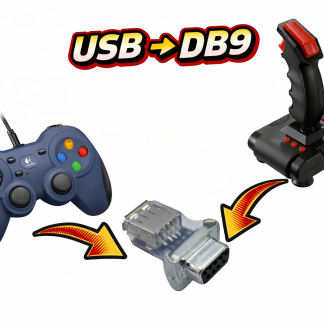
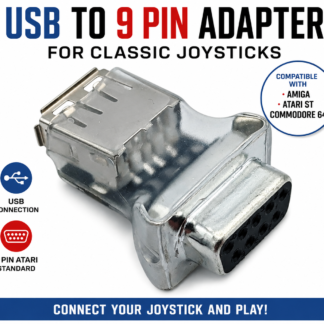
Looking for a way to use a modern USB joystick with a classic computer? This USB to 9-pin joystick adapter is designed to connect compatible USB joysticks and controllers to classic computers that use the Atari-style 9-pin joystick interface.

It is ideal for retro-computing enthusiasts who own systems such as the Commodore 64, Amiga or Atari ST and want an alternative to finding an original vintage joystick.

Connect a USB Joystick to a Classic Computer

Classic computers were designed long before USB became the standard controller connection. Many popular machines from the 1980s and 1990s used the familiar 9-pin Atari-style joystick interface.

Today, original joysticks can be difficult to find, and many surviving controllers have suffered from decades of use.

This adapter provides a practical way to bridge the gap between modern USB controllers and compatible classic computers.

The basic setup is:

USB Joystick → USB to 9-Pin Adapter → Classic Computer

The adapter converts the connection from a compatible USB joystick into the Atari-style 9-pin joystick interface used by compatible classic systems.

Compatible Classic Computers

This USB joystick adapter is designed for compatible systems using the Atari-style 9-pin joystick standard, including:

  • Commodore 64 (C64)
  • Commodore 128
  • Amiga computers
  • Atari ST
  • Other compatible classic computers using the appropriate 9-pin joystick interface

Compatibility can depend on the USB joystick or controller being used, so please check your particular controller and computer before purchasing.

USB Joystick Adapter for Amiga

The Amiga remains one of the most popular classic computers for retro gaming.

If your original Amiga joystick has become worn, unreliable or difficult to replace, a compatible USB joystick combined with this adapter can provide another option.

Instead of searching for an original vintage controller, you can use a compatible modern USB joystick while continuing to enjoy your original Amiga hardware.

Whether you are restoring an Amiga or simply returning to classic games, this adapter can help connect modern controller hardware to compatible classic joystick ports.

USB Joystick Adapter for Atari ST

The Atari ST is another classic computer that used the familiar 9-pin joystick connection.

If you are looking for an Atari ST joystick replacement or want to experiment with a modern USB controller, this adapter provides a convenient connection between compatible USB controllers and the Atari-style joystick interface.

It can be particularly useful for retro-computing enthusiasts restoring an Atari ST or maintaining a vintage gaming setup.

USB Joystick Adapter for Commodore 64

The Commodore 64 has one of the largest libraries of classic joystick-based games ever produced.

From arcade games and shoot-’em-ups to platformers and sports games, the joystick is an essential part of the C64 gaming experience.

If you need a C64 joystick replacement, an original joystick is not your only option.

A compatible USB joystick together with this USB-to-9-pin adapter can provide a modern controller solution while allowing you to continue using your original Commodore 64.

What Is an Atari-Style 9-Pin Joystick?

The Atari-style 9-pin joystick connector became one of the most widely recognised controller connections used by classic computers and gaming systems.

It is commonly associated with systems such as:

  • Atari computers
  • Atari ST
  • Commodore 64
  • Commodore 128
  • Amiga
  • Other classic computers and consoles using compatible joystick interfaces

This is why you may see people searching for terms such as Atari 9-pin joystick, 9-pin joystick adapter, C64 joystick, Amiga joystick, Atari ST joystick or retro computer joystick.

However, having a 9-pin connector does not automatically guarantee compatibility. Different machines can use similar connectors in different ways, so always check compatibility with your specific system.

Why Use a USB Joystick With an Old Computer?

Original vintage joysticks are great for authenticity, but they have been around for decades.

A vintage joystick may have:

  • Worn switches
  • Damaged cables
  • Broken buttons
  • Intermittent connections
  • Stiff controls
  • Loose controls
  • General signs of age

Replacement vintage joysticks can also be difficult to find.

Using a compatible USB controller gives retro gamers another option.

You can keep your original classic computer while using a readily available modern controller.

That makes this adapter useful for anyone who wants to combine the convenience of modern USB hardware with the charm of classic computing.

A Useful Adapter for Retro Gaming

This USB-to-9-pin adapter can be useful for:

  • Commodore 64 owners
  • Commodore 128 owners
  • Amiga owners
  • Atari ST owners
  • Retro gamers
  • Vintage computer collectors
  • Classic computer restorers
  • Retro-gaming setups
  • Anyone looking for a joystick for an old computer
  • Anyone looking for an alternative to a vintage 9-pin joystick

If you have an old computer sitting in storage because you no longer have a working joystick, an adapter like this may provide another way to get your system back into action.

How to Connect a USB Joystick to a Classic Computer

The connection is straightforward for compatible equipment.

Step 1 — Connect your USB joystick

Connect your compatible USB joystick or controller to the USB connection on the adapter.

Step 2 — Connect the 9-pin plug

Connect the adapter to the appropriate joystick port on your compatible classic computer.

Step 3 — Start your computer

Turn on your computer and test the joystick using a compatible game or software.

The exact behaviour will depend on the USB controller, computer and software being used.

Looking for a Joystick for an Old Computer?

If you have searched for:

“joystick for Commodore 64”

“joystick for Amiga”

“joystick for Atari ST”

“USB joystick for old computer”

“C64 joystick replacement”

“Atari 9 pin joystick adapter”

“Amiga joystick adapter”

or

“USB to 9 pin joystick adapter”

then this type of adapter may be exactly what you need.

Rather than replacing or modifying your classic computer, the adapter is designed to provide a connection between a compatible modern USB controller and a compatible Atari-style 9-pin joystick port.

What Should I Check Before Buying?

Before purchasing, check the following:

1. Check your computer

Make sure your computer has a compatible Atari-style 9-pin joystick interface.

2. Check your USB joystick

Not every USB controller is identical. Different controllers can have different button layouts, input configurations and functions.

Make sure your USB joystick is compatible with the adapter.

3. Check your intended use

Think about the games and software you want to use.

Classic games can rely on specific joystick inputs, so make sure the controller and adapter combination provides the functions required by your system.

4. Check your exact model

“Amiga”, “Atari” and “Commodore” cover many different computers and configurations.

If you have an unusual model, check the specifications carefully before ordering.

Frequently Asked Questions

Can I use a USB joystick on a Commodore 64?

A compatible USB joystick can be connected to a compatible Commodore 64 through a suitable USB-to-9-pin joystick adapter. The adapter is designed around the Atari-style 9-pin joystick interface.

Can I connect a USB joystick to an Amiga?

Yes, the adapter is designed for compatible USB joysticks and classic computers using the appropriate 9-pin joystick interface, including compatible Amiga systems.

Can I use a USB joystick on an Atari ST?

The adapter is designed to connect compatible USB controllers to systems using the Atari-style 9-pin joystick standard, including compatible Atari ST systems.

Is this a USB-to-serial adapter?

No.

This is a USB joystick adapter designed specifically around the Atari-style 9-pin joystick interface. It is not intended to function as a general-purpose USB-to-serial converter.

Does it work with every USB joystick?

No USB controller can be assumed to be universally compatible.

USB joysticks and controllers can use different configurations and features, so check compatibility before purchasing if you are using an unusual or specialised controller.

Do I need to modify my Amiga, Atari ST or Commodore 64?

The adapter is designed to provide the required connection between a compatible USB joystick and compatible classic computer joystick ports. It is intended as an external adapter rather than requiring internal modification of the computer.

Modern USB Controllers Meet Classic Computers

One of the best things about retro computing is that you don’t necessarily have to choose between original hardware and modern convenience.

Your Commodore 64, Amiga or Atari ST can remain at the centre of your retro-gaming setup while a compatible USB joystick provides the controls.

This USB to 9-pin joystick adapter helps bridge the gap between two generations of hardware.

Modern USB joystick + USB to 9-pin adapter + classic computer = another way to enjoy retro gaming.

Keep Your Classic Computer Playing

Vintage computers such as the Commodore 64, Amiga and Atari ST continue to have passionate communities around the world.

As these machines become older, finding replacement accessories can become increasingly difficult.

A USB-to-9-pin joystick adapter provides a practical option for retro gamers who want to use compatible modern USB controllers with classic computers.

Whether you are restoring an old machine, replacing a failed joystick or building a modern retro-gaming setup, this adapter can help you connect compatible USB controller hardware to the classic Atari-style 9-pin joystick interface.

Keep your classic computer. Keep playing your classic games.

USB to 9-Pin Joystick Adapter — designed for compatible Amiga, Atari ST, Commodore 64 and other classic systems using the Atari-style 9-pin joystick standard.

Posted on

USB Gamepad & Joystick Adapter for the Commodore 64 Ultimate – Play with Modern Controllers

The launch of the Commodore 64 Ultimate has given retro computing enthusiasts an exciting new way to experience one of the most iconic home computers ever made. While the hardware faithfully recreates the classic Commodore 64 experience, many users already own modern USB gamepads and arcade joysticks that they’d prefer to use instead of hunting down original 9-pin controllers.

A USB gamepad and joystick adapter solves this problem by allowing compatible USB controllers to connect directly to the Commodore 64 Ultimate’s standard 9-pin joystick ports, combining modern convenience with authentic retro gameplay.

Add product button or featured product image here.


Why Use a USB Gamepad with the Commodore 64 Ultimate?

Original Commodore joysticks have become increasingly difficult to find in excellent working condition. Many surviving controllers suffer from worn microswitches, damaged cables, or unreliable contacts after decades of use.

Modern USB controllers offer several advantages:

  • Comfortable ergonomic designs
  • Excellent build quality
  • Easy availability
  • Reliable switches and buttons
  • Support for many popular gamepads and arcade sticks
  • Ideal for long gaming sessions

Rather than replacing the authentic joystick ports on the Commodore 64 Ultimate, a USB adapter allows you to continue using the original hardware interface while benefiting from modern controller technology.


Designed for the Commodore 64 Ultimate

The Commodore 64 Ultimate recreates the original hardware experience while introducing modern capabilities. One feature retained from the original machine is the standard 9-pin joystick interface used by thousands of classic games.

A dedicated USB joystick adapter converts supported USB controllers into signals understood by the Commodore 64 Ultimate, allowing games to respond exactly as they would with a traditional joystick but safe for an FPGA system

This means there’s no need to modify your computer or alter your favourite software—simply connect your compatible controller through the adapter and enjoy classic gaming – just plug in and play

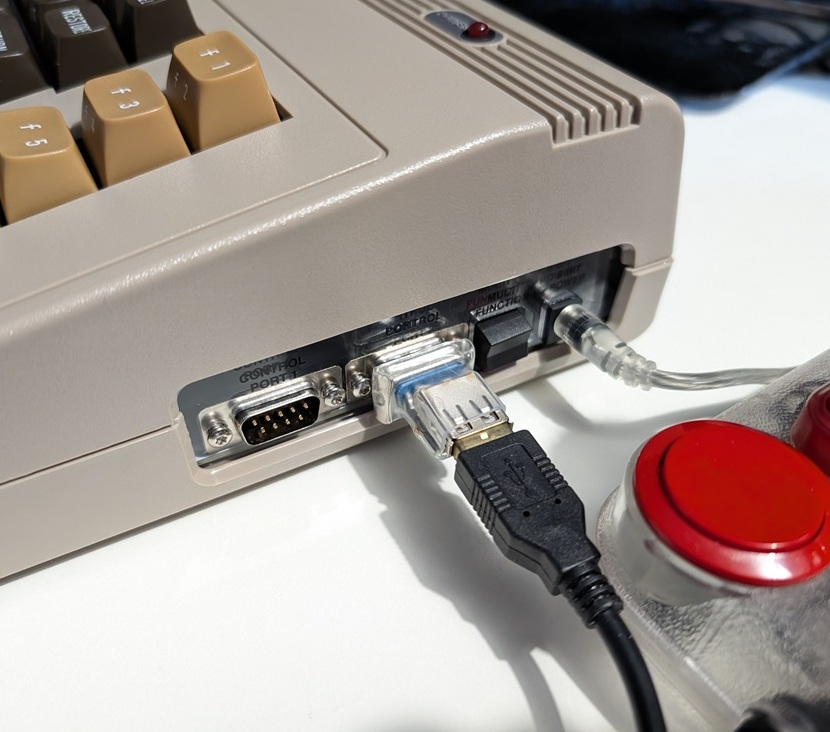
c64 ultimate usb controller connected to 9 pin port


Compatible with Modern USB Controllers

One of the biggest advantages of using a USB adapter is the flexibility it provides.

Depending on supported compatibility, users can enjoy gaming with:

  • Modern USB gamepads
  • USB arcade sticks
  • Retro-style USB joysticks
  • Wired USB controllers

This gives retro gamers the freedom to choose a controller that best matches their favourite games, whether they’re playing platformers, shooters, racing games, or arcade classics.


Perfect for Classic Commodore Games

Thousands of Commodore 64 titles rely on precise joystick input.

A quality USB adapter helps bring modern controller reliability to classics such as:

  • Impossible Mission
  • Summer Games
  • Winter Games
  • The Last Ninja series
  • Paradroid
  • Turrican
  • IK+
  • Bubble Bobble
  • Creatures
  • Mayhem in Monsterland

Whether you’re revisiting childhood favourites or discovering these legendary games for the first time, responsive controls can make gameplay more enjoyable.


Easy Plug-and-Play Installation

Using a USB joystick adapter should be simple.

Typical setup involves:

  1. Connect the adapter to the Commodore 64 Ultimate joystick port.
  2. Connect a compatible USB controller.
  3. Load your favourite game.
  4. Start playing.

No permanent modifications are required, making the adapter ideal for collectors who want to preserve their hardware while expanding controller options.


Ideal for Retro Gaming Enthusiasts

Many retro gamers own multiple systems alongside their Commodore 64 Ultimate.

Using USB controllers provides several benefits:

  • Reuse controllers you already own
  • Reduce wear on valuable vintage joysticks
  • Enjoy consistent controls across different systems
  • Simplify your gaming setup
  • Improve comfort during extended play sessions

For users with modern gaming collections, it also means one controller can potentially serve multiple retro platforms.


Frequently Asked Questions

Does the adapter replace the original joystick ports?

No. It connects to the existing 9-pin joystick port, allowing compatible USB controllers to be connected

Can I still use the adapter on an original Commodore 64?

Yes. The adapter is compatible with the original C64 and Atari Computers

Is setup complicated?

No. Installation is straightforward and designed to get you playing quickly.

Why use USB instead of an original joystick?

Modern controllers are often easier to find, more comfortable to use, and can provide improved reliability while preserving your original vintage hardware.


Upgrade Your Commodore 64 Ultimate Gaming Experience

The Commodore 64 Ultimate combines authentic retro computing with modern engineering, and a USB gamepad and joystick adapter is a natural extension of that philosophy.

Whether you’re enjoying arcade classics, competing for high scores, or introducing a new generation to Commodore gaming, using modern USB controllers offers convenience without sacrificing compatibility.

If you’re looking for an easy way to use your favourite USB gamepad or joystick with the Commodore 64 Ultimate’s original 9-pin joystick ports, this adapter provides a practical solution that brings together the best of classic and modern gaming.

Posted on

USB Gamepad & Joystick Adapter Compatibility Chart 2026

USB Gamepad & Joystick Adapter Compatibility Chart 2026

Latest Compatibility List for Retro Computers, Gamepads & Joysticks

If you’re looking for the most up-to-date compatibility information for our USB Gamepad & Joystick Adapter, you’ve come to the right place.

Our adapter allows modern USB gamepads, arcade sticks, and joysticks to be used with a wide range of classic retro computers, making it easier than ever to enjoy your favourite systems with the controller of your choice.

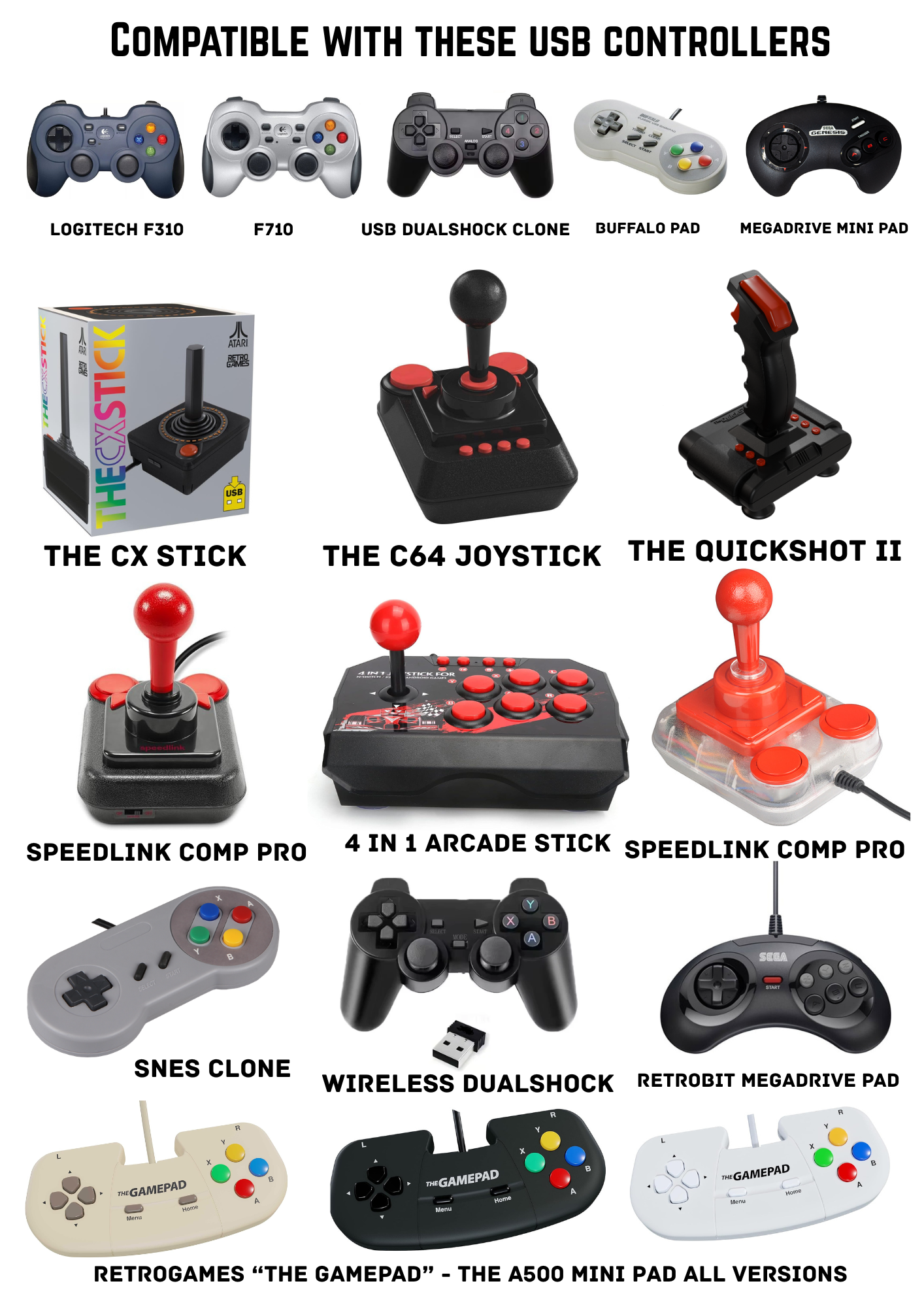
Latest Compatibility Chart

Supported Retro Computer Systems

Our USB Gamepad & Joystick Adapter has been tested with numerous retro computing platforms, including:

  • Commodore Amiga
  • Commodore 64
  • Atari ST
  • Atari 8-bit Computers
  • ZX Spectrum (MUST HAVE COMPATIBLE JOYSTICK INTERFACE WITH 5V POWER)
  • Other DB9-compatible retro systems eg Atari 2600 Console, CD32 Console

Supported USB Controllers

The latest chart above includes support information for:

  • Wired USB Gamepads shown in the chart
  • USB Joysticks
  • Arcade Sticks
  • Wireless Controllers (via compatible USB receivers)

Does the adapter support modern USB gamepads?

Yes. Many popular USB gamepads are supported. Please refer to the compatibility chart above

Can I use wireless controllers?

The Logitech F710 and Dualshock wireless Dualshock Clone pads work when connected via their USB receiver.

Is new hardware added regularly?

Yes. We regularly test additional controllers and update compatibility information as new devices become available, if you have a pad please message us if you would like it adding to the supported list – note some controllers are not able to be added due to the current limits of the 9 pin joystick port

Where can I buy the adapter?

You can purchase the USB Gamepad & Joystick Adapter directly from the store using the link below, or from eBay – links below

https://www.ebay.co.uk/itm/137396107294

Stay Updated

Bookmark this page and check back regularly for the latest compatibility updates, newly tested controllers, firmware improvements, and retro computer support information.

Keywords: USB gamepad adapter, retro computer controller adapter, USB joystick adapter, Amiga USB controller adapter, Atari ST gamepad adapter, Commodore 64 joystick adapter, retro gaming controller compatibility, USB controller for retro computers, DB9 joystick adapter, retro computer accessories.

Posted on

USB to 9 Pin Adapter for Amiga, Atari ST & CD32 | Use Modern Controllers

Play Classic Games with Modern USB Controllers on Your Commodore Amiga and Atari ST

Love your Commodore Amiga or Atari ST, but tired of struggling with old joysticks? With our USB to 9-pin DE9/DB9 adapter, you can now use modern USB gamepads and joysticks on these vintage systems—including the Amiga CD32—without any hassle.

Why You Need a USB to DE9 Adapter

Vintage computers rely on 9-pin DE9 ports, which aren’t compatible with today’s USB controllers. That’s where a USB to DE9 adapter comes in. It converts modern USB signals into the format your classic system expects, letting you enjoy retro gaming with the comfort of today’s controllers.

Our adapters work perfectly with:

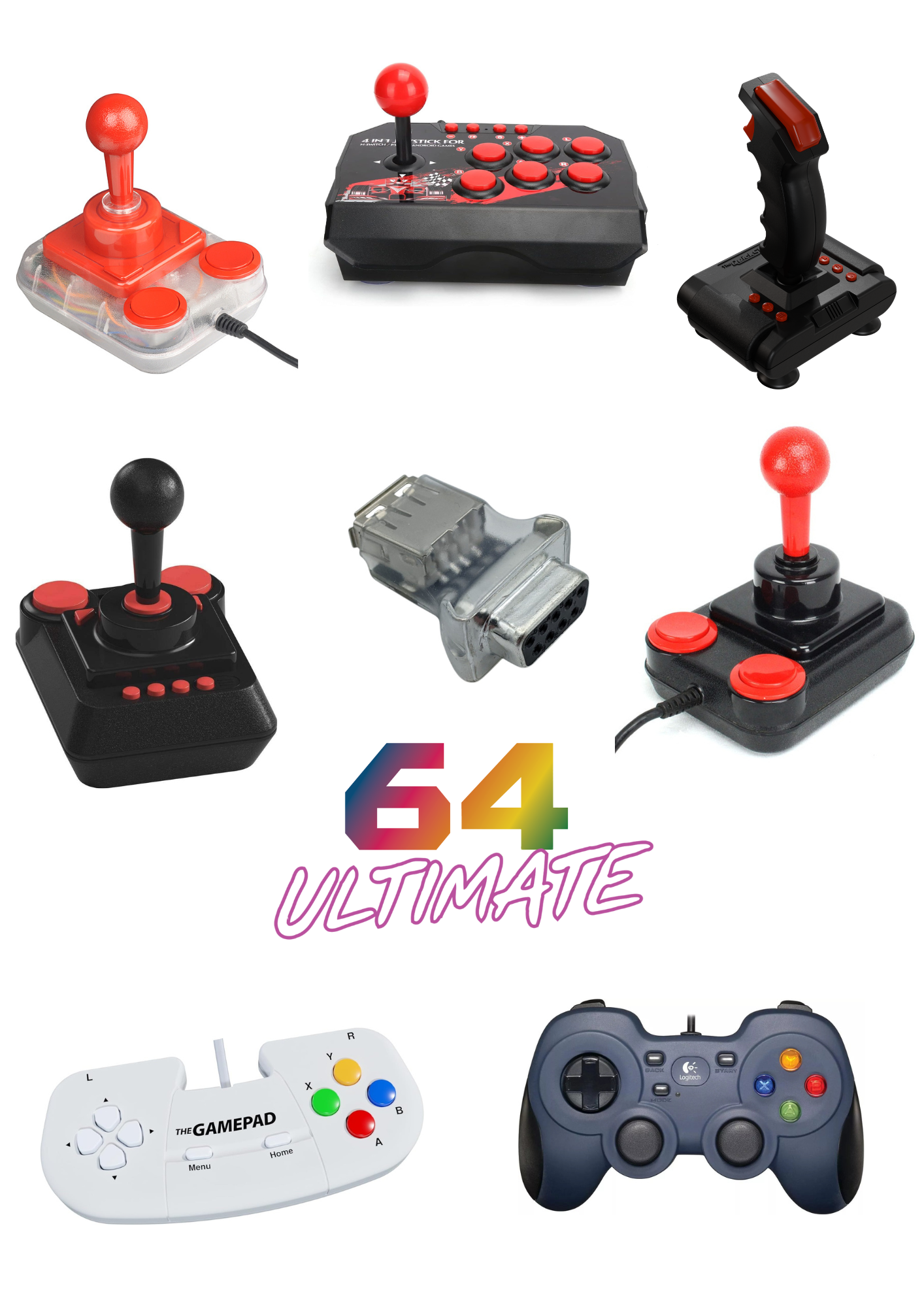
  • Retrogames Ltd controllers

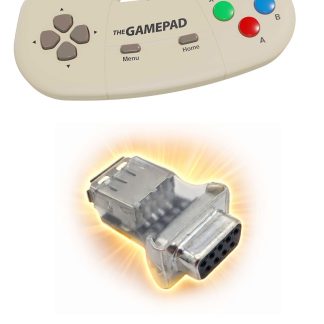
  • TheGamePad

  • TheQuickShot2

  • C64 Joystick

  • Speedlink Competition Pro Joystick

  • Logitech F310 and F710 gamepads

…and many more USB controllers, ensuring you can play on Amiga, Atari ST, and Amiga CD32.

Features of Our USB to DE9 Adapters

When choosing an adapter, look for:

  1. Plug-and-play simplicity – just connect and play

  2. Supports multiple USB controllers – works with gamepads and joysticks from major brands

  3. High responsiveness – accurate inputs for fast-paced games

  4. Durable design – made for long-term use on vintage hardware

How to Connect Your Controller

  1. Connect your USB controller (e.g., Logitech F310, Retrogames Ltd, or Speedlink Competition Pro) to the adapter

  2. Plug the adapter into your Amiga, Amiga CD32, or Atari ST joystick port

  3. Power on your system and start playing—no drivers or software hacks required


Who Should Get a USB to DE9 Adapter?

  • Retro gamers looking for a modern controller experience

  • Players who want to protect vintage joystick ports

  • Anyone who owns a Commodore Amiga, Amiga CD32, or Atari ST

Why Buy From Us?

Our adapters are specially built for retro systems. We prioritize quality, reliability, and easy setup so you can focus on gaming, not troubleshooting.

We also provide:

  • Fast shipping

  • Secure payment options

  • Dedicated customer support

Upgrade Your Retro Gaming Today

Don’t let outdated joysticks hold you back. Use modern USB controllers with your Commodore Amiga, Amiga CD32, or Atari ST using our USB to DE9/DB9 adapter. Compatible with controllers like TheQuickShot2, Retrogames Ltd, C64 joystick, Speedlink Competition Pro, and Logitech F310/F710, your classic games have never been more fun or comfortable to play.

Play Amiga CD32 Games and WHDLoad Conversions with full 7-Button CD32 Mode Support

For Amiga enthusiasts who want the full Amiga CD32 experience, there’s a special adapter designed to bring modern USB controllers to both Amiga CD32 consoles and regular Amiga computers.

Unlike standard USB to DE9 adapters, this adapter fully supports the 7-button mode, which is required for many CD32 games and WHDLoad CD32 conversions.

With this adapter, you can:

  • Use modern USB specific gamepads and Joysticks on Amiga CD32 games that require 7 buttons

  • Play WHDLoad game conversions on classic Amiga computers with complete button functionality and still use as in standard joystick mode in Amiga games

  • Avoid the limitations of traditional 2-button or 3-button joystick adapters

  • Enjoy plug-and-play setup with no drivers or software tweaks required

Whether you’re playing action-packed CD32 titles or classic WHDLoad conversions, this adapter ensures reliable gameplay giving you the comfort of modern gaming controllers while preserving your vintage hardware.

Also available is a SNES Style USB Gamepad that includes the CD32 adapter – simple solution to expensive and hard to find original CD32 game controllers