Posted on

Retro Mouse & Joystick Adapters for Amiga, Atari ST, BBC, MSX & Mini Consoles

Upgrade your classic retro computer or mini console with high-quality modern mouse, keyboard and joystick adapters. Our range of precision-engineered adapters allows you to connect USB mice, modern keyboards and contemporary gamepads to legendary systems including the Commodore Amiga, Atari ST, Acorn BBC Micro, Archimedes, MSX and popular mini consoles.

Whether you are restoring original hardware or enhancing your gaming experience, our adapters provide reliable plug-and-play compatibility without modifying your machine.


Commodore Amiga Mouse & Joystick Adapters

Bring modern control to your Amiga setup with USB mouse adapters and joystick converters compatible with classic systems and mini recreations.

  • USB Mouse and Keyboard Adapters for A500, A500 Plus, A600, A1200, A1500, A2000, A3000, A4000 and CD32
  • Joystick & Gamepad Adapters
  • Joystick Adapters for The A500 Mini, The A1200, The C64 Mini and The Spectrum
  • Low latency performance for gaming

Atari ST USB Mouse & Controller Adapters

Replace ageing Atari ST mice with modern optical USB mice or upgrade your joystick setup with reliable controller adapters.

  • Atari ST USB Mouse Adapters
  • Precision optical mouse support
  • Joystick & Gamepad Converters
  • Simple plug and play installation

Acorn BBC Micro & Archimedes Adapters

Enhance your Acorn systems with modern peripherals while preserving original hardware integrity.

  • BBC Micro Mouse Adapters
  • Archimedes USB Mouse Support
  • Joystick Adapters for Retro Gaming
  • Reliable, stable and responsive performance

MSX Mouse & Joystick Adapters

Upgrade your MSX computer with modern control solutions designed for smooth operation and broad compatibility.

  • MSX USB Mouse Adapters
  • Modern Gamepad & Joystick Support
  • Designed for accuracy and low input lag

Mini Console & Modern System Compatibility

Our 9 pin joystick adapters are also compatible with popular mini retro systems, allowing you to improve control precision and comfort.

  • The A500 Mini
  • The C64 Mini
  • The C64 Maxi
  • The A1200
  • The Spectrum
  • Windows PC’s

Why Choose Our Retro Adapters?

  • Plug and play — no internal modification required
  • Designed for retro enthusiasts and collectors
  • Tested for compatibility and stability
  • Precision engineered for minimal latency
  • Ideal for gaming, development and restoration projects

Browse our full range of retro computer adapters and modernise your classic setup today.

Posted on

USB Keyboard Adapter for Commodore Amiga & CD32

Use a modern USB Keyboard with Your Commodore Amiga & CD32 – The Easy Way

If you love retro computing, few machines are as iconic as the Commodore Amiga range and the legendary Amiga CD32 console. Whether you’re gaming, creating music, coding in AMOS, or reliving demo scene classics, the keyboard is at the heart of the experience.

But what happens when your original Amiga keyboard fails? Or when you’re using a CD32 and want the full computer experience?

The solution is simple: use a modern PC USB keyboard with your Amiga or CD32 using our purpose-built USB keyboard adapter.


Why Use a USB Keyboard with an Amiga?

Original Amiga keyboards are now over 30 years old. Common issues include:

  • Worn-out membrane contacts

  • Non-responsive keys

  • Yellowed or damaged cases

  • Expensive replacements on the second-hand market

Modern USB keyboards are:

  • Affordable

  • Easy to replace

  • Available in compact or full-size layouts

  • Mechanical (if you prefer that classic tactile feel)

  • Widely available

With the right adapter, you can enjoy modern reliability while keeping your retro setup authentic.


Using a USB Keyboard with the Amiga CD32

The Amiga CD32 was originally released as a console, but with the right accessories, it transforms into a full Amiga computer.

To unlock its full potential, you need:

  • A keyboard

  • A mouse

  • Proper expansion hardware

Our USB keyboard adapter allows you to connect a standard PC USB keyboard directly to your CD32, making it far easier to:

  • Load WHDLoad titles

  • Use Workbench

  • Manage files

  • Type commands

  • Develop or experiment

No need to hunt down rare and expensive original peripherals.


Compatible Amiga Models

Our adapter works with classic Amiga systems including:

  • Amiga 500
  • Amiga 500 Plus
  • Amiga 600
  • Amiga 1200
  • Amiga 2000
  • Amiga 3000
  • Amiga 4000
  • Commodore CDTV
  • Amiga CD32

Our adapter acts as a translator between modern USB HID keyboards and the Amiga

Key Features:

  • Plug-and-play design

  • No soldering required

  • Low latency response

  • Supports most standard USB keyboards

  • Compact and discreet

  • Designed specifically for Amiga systems – support resetting the Amiga using a Key Combination like Ctrl  + Amiga + Amiga

Simply plug your USB keyboard into the adapter, connect the adapter to your Amiga or CD32, power on — and you’re ready to go.


Why Buy From Us?

As retro computing enthusiasts, we design and supply accessories that:

  • Preserve your original hardware

  • Extend the life of your system

  • Improve everyday usability

  • Keep your setup clean and modern

Unlike generic converters, our adapter is built specifically for Amiga systems, ensuring correct key mapping and compatibility.


The Perfect Upgrade for Retro Setups

Whether you’re:

  • Building an amiga system with a new case like the Checkmate and need a modern keyboard solution

  • Restoring a CD32 console

  • Replacing a faulty keyboard

  • Creating the ultimate Amiga gaming setup

This USB keyboard adapter is a simple, affordable upgrade that makes a big difference.


Bring Your Amiga Back to Life

Don’t let a faulty keyboard stop you from enjoying your favourite Amiga titles and applications. With our USB keyboard adapter, you can combine the reliability of modern peripherals with the magic of classic computing.

Browse our retro accessories store now and keep your classic hardware alive for decades to come.

Posted on

Best Amiga Compatible Game Controllers – Top Joysticks & Gamepads for Classic Commodore Amiga Systems

The Commodore Amiga remains one of the most beloved retro gaming platforms ever created. From classics like The Chaos Engine and Sensible Soccer to Turrican II, the authentic experience depends heavily on one essential piece of hardware — the right controller.

If you’re looking for Amiga compatible game controllers, choosing the correct joystick or gamepad can make all the difference between frustration and nostalgia-fueled perfection. In this guide, we’ll explore the best compatible joysticks and gamepads for original Amiga systems and modern setups.


🎮 Understanding Amiga Controller Compatibility

Most classic Commodore Amiga models — including the Amiga 500, Amiga 600, Amiga 1200, and Amiga 2000 — use the standard 9-pin D-sub (DE-9) joystick port.

This means:

  • They are compatible with Atari-style digital joysticks

  • Many Sega Master System controllers work (with limitations)

  • Certain Sega Mega Drive / Genesis gamepads are partially compatible

  • Modern USB controllers require an adapter

Because the Amiga uses digital inputs (not analog like later consoles), compatibility is largely hardware-based — making quality and wiring critical.


🕹️ Best Classic Amiga Compatible Joysticks

1️⃣ Competition Pro Joystick

A legendary choice among Amiga gamers, the Competition Pro features durable microswitches and arcade-style responsiveness. It’s ideal for action titles and platformers.

Perfect for:

  • Shoot ‘em ups

  • Arcade conversions

  • High-precision games


2️⃣ Zipstik / Zipstick

Often considered one of the most robust joysticks ever made for 16-bit computers. Built with arcade-quality components, it’s a favorite among serious retro enthusiasts.


3️⃣ Atari 2600 Standard Joysticks

Because the Amiga uses the same 9-pin standard introduced with the Atari 2600, many classic Atari-compatible joysticks work flawlessly on the Amiga.


🎮 Amiga Compatible Gamepads

While joysticks were dominant in the late ’80s, gamepads became increasingly popular in the 16-bit era.

Sega Master System Controller

Controllers from the Sega Master System are directly compatible with Amiga systems. They offer a more console-like experience, especially for platformers.


Sega Mega Drive / Genesis 3-Button Pad – Warning

Its not recommended to use the mega drive pads with Commodore Amiga computers as this could damage the Paula chip due to different wiring of the 5 volt supply pin to the megadrive pad select signal


🔌 Modern USB Solutions for Today’s Amiga Gamers

If you’re running original hardware or modern recreations like the THEA500 Mini, you may prefer USB gamepad controllers or modern joysticks

Options include:

  • USB Competition Pro replicas

  • Retro-style gamepads with USB-to-DB9 adapters

  • Wireless controllers with Amiga-compatible adapters

Adapters allow modern controllers to function correctly without damaging original hardware.

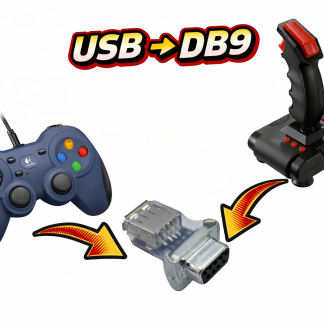
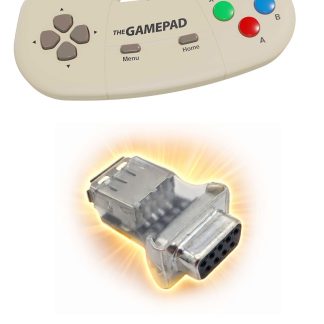
Compatible USB controllers for the TruMouse USB to 9 Pin Gamepad Adapter with product links


⚠️ Important Compatibility Tips

Before purchasing your Amiga compatible game controller, keep these points in mind:

✔ Ensure it uses a 9-pin DE-9 connector (for original hardware)
✔ Avoid controllers requiring analog signals
✔ Check wiring compatibility for Sega pads
✔ Use trusted adapters for USB devices
✔ Confirm compatibility with your specific Amiga model


🕹️ Why the Right Controller Matters

Classic Amiga games were designed with digital joysticks in mind. Using an incompatible or low-quality controller can result in:

  • Missed inputs

  • “Sticky” movement

  • Poor diagonals

  • Unresponsive fire buttons

For competitive games like Speedball 2: Brutal Deluxe, precision makes a huge difference.

Posted on

Amiga joystick port pinout

Amiga Joystick Port Pinout: Complete Guide for Retro Gamers & Adapter Buyers

The joystick ports on machines like the Amiga 500, Amiga 1200, and Amiga 2000 use a standard 9-pin D-Sub connector and is compatible with  Atari joystick standard the basic amiga mode provides 4 directions and 2 fire buttons (the majority of games only support a single fire button) – the extended CD32 gamepad mode enables directions and 7 buttons to be used


Amiga Joystick Port Overview

The Amiga uses a DB9 (DE-9) female connector for each joystick port.  The Amga uses the first port for the Mouse and second port for Joystick, for two player games the mouse can be removed and two joysticks can be used.

  • Digital joysticks

  • Two-button controllers (2 independent fire buttons)

  • Mice

  • Paddle controllers (via POT lines)

  • CD32 Mode enables 7 button support in some games (Usually CD32 game conversions for AGA machines)

Unlike some other systems, the Amiga joystick port also integrates analog inputs and power lines, making it more versatile — and more complex.


Amiga Joystick Port Pinout

Below is the standard Amiga joystick port pinout:

Pin Signal Description
1 Up Digital Up input
2 Down Digital Down input
3 Left Digital Left input
4 Right Digital Right input
5 POT X POT X – Analog / Paddle X – CD32 Latch
6 Fire 1 Primary Fire button
7 +5V +5V supply
8 GND Ground
9 Fire 2 POT Y – Analog / Paddle Y

Important Electrical Notes

  • All direction and fire inputs are active low

  • Internal pull-up resistors are used

  • +5V (Pin 7) can power low-current adapters

  • POT lines are used by mice and paddle controllers


Amiga vs Atari Joystick Pinout Differences

The Amiga joystick port is mechanically compatible with the Atari and Kempston joystick standard.

This is why dedicated Amiga-compatible adapters are highly recommended.


Compatible Controllers

The standard classic joysticks like the Atari CX Stick, Quickshot, Zipstick and Competition Pro 9 pin models are all compatible – but with modern USB to 9 pin adapters like the TruMouse gamepad adapters you can use modern controllers with the Amiga


Amiga CD32  Mode

The Amiga CD32 uses the same physical DB9 connector but adds a multiplexed button system for extra buttons, with an adapter that supports the CD32 mode you can play CD32 WHDLOAD conversion on your amiga and the CD32 Console

Posted on

MSX USB Mouse Adapter: Upgrade for MSX, FM Towns & Roland Samplers

Revive Your Retro Setup: The Ultimate Guide to MSX USB Mouse Adapters

If you are a fan of 8-bit or 16-bit legends like the MSX, the FM Towns, or even professional music gear like Roland Samplers, you know the struggle: finding an original, working mouse is getting harder (and more expensive) by the day.

Standard PC mice use a different communication protocol than these vintage machines. However, with modern USB to MSX Mouse Adapters, you can finally ditch the sticky trackballs of the 80s for a smooth, optical USB experience.

Why Upgrade Your Legacy Mouse?

The original mice for the MSX and FM Towns used a specialized 9-pin (DB9) bus mouse protocol. Over time, these mechanical mice suffer from:

  • Perished rollers that cause skipping.

  • Corroded cables and proprietary connectors.

  • High costs on the second-hand market.

By using a high-quality adapter, you can plug in almost any modern wired USB mouse, bringing precision to your gaming, graphic design, and music production.


Universal Compatibility: One Adapter, Many Machines

The beauty of modern MSX mouse adapters is their versatility. Most are designed to be “plug-and-play” across several distinct ecosystems:

1. MSX, MSX2, and MSX2+ Computers

Whether you’re running a Sony HitBit, a Panasonic FS-A1GT, or a Yamaha CX5M, the mouse protocol remains consistent. An adapter allows you to navigate the MSX-DOS environment or play classics like Lemmings with ease.

2. The Fujitsu FM Towns

Known for its high-end multimedia capabilities, the FM Towns shares a similar mouse pinout with the MSX. A high-quality adapter will let you experience this “Japanese PC” powerhouse without hunting for rare Fujitsu-branded peripherals.

3. Roland Samplers (S-760, S-750, S-770)

In the world of pro audio, the Roland S-series samplers are legendary. However, navigating their deep menus via the front panel is a chore. These samplers use the MSX mouse standard for their external display output. Adding a USB adapter transforms your workflow, making sample editing as fast as modern DAW software.


Key Features to Look For

When choosing an adapter for your product, ensure it offers these professional-grade specs:

Feature Benefit
No Latency Instant cursor response for gaming and music.
Scroll Wheel Support Some advanced MSX software can map the wheel for scrolling.
USB-A Port Compatibility with standard wired mice.
Durable DB9 Connector Snug fit into the joystick ports of your retro gear.

How to Set Up Your USB Mouse Adapter

  1. Power Down: Always turn off your MSX or Roland Sampler before plugging in peripherals.

  2. Connect: Plug your USB mouse into the adapter, then plug the adapter into Joystick Port 1 or 2.

  3. Boot Up: Turn on the machine. Most adapters automatically detect the mouse protocol.

  4. Enjoy: Experience optical precision on hardware that was built decades before optical mice were common!


Conclusion

Whether you are a retro gamer, a collector, or a music producer using vintage Roland gear, a USB Mouse Adapter is the single best quality-of-life upgrade you can buy. It preserves your original hardware while providing the comfort of modern technology.

Looking to upgrade your setup today?

and bring your MSX or Roland Sampler into the 21st century!

Posted on

How to Use a Scroll Wheel Mouse on Amiga 500: TruScroll Adapter Guide

How to Use a Scroll Wheel Mouse on a Commodore Amiga

If you are using a Commodore Amiga 500, 1200, or 600 in the modern era, you’ve likely reached for a scroll wheel that isn’t there. The original Amiga “tank mouse” was a classic, but for modern productivity in Workbench, a scroll wheel is a game-changer.

The good news? You can easily add scroll wheel support to your vintage hardware. This guide covers everything from the TruScroll USB adapter to the software drivers required to get you scrolling.


1. The Hardware: Why You Need a TruScroll Adapter

The Amiga uses a unique 9-pin (DB9) mouse port that is electrically different from modern PC mice. To use a modern optical mouse, you need an intelligent interface.

The TruScroll Amiga Mouse Adapter is the premier choice for enthusiasts because:

  • True USB HID Support: It works with almost any modern wired or wireless USB mouse.

  • Plug-and-Play: No complex hardware modifications required.

  • Low Profile: Fits perfectly in the cramped mouse ports of the Amiga 600 and 1200.

  • Optical Precision: Eliminates the need for cleaning old mouse balls and rollers.


2. Essential Software for Amiga Scroll Support

While the TruScroll adapter handles the hardware connection, AmigaOS (Workbench) needs a driver interpret the scroll wheel signals.

TankMouse Driver

Download the Tankmouse driver by Szymon BieganskiTankMouse

Once you run it you can close the window – the drivers stays in memory and enables the scrollwheel on the TruScroll adapter

The driver also includes a driver installer, once installed it will automatically run at startup if your Amiga boots froom an internal drive

The FreeWheel Utility for Older Amiga Workbench versions

The most widely used software for this is FreeWheel by Alastair M. Robinson, use this down link Freewheel.

  • What it does: It intercepts the wheel data from your TruScroll adapter and tells Workbench windows to scroll up or down.

  • Compatibility: Works on virtually all versions of AmigaOS versions

AmigaOS 3.2+ Users

If you are running the latest AmigaOS 3.2 or higher, scroll wheel support is integrated so freewheel is not required, but you still need to have the Tankmouse driver running


3. Step-by-Step Setup Guide

  1. Safety First: Power off your Amiga before connecting any hardware.

  2. Connect the Adapter: Plug your TruScroll adapter into the amiga Mouse Port.

  3. Plug in Your Mouse: Insert your USB mouse (or wireless dongle) into the TruScroll USB port.

  4. Install the Driver:

    • Download TankMouse Driver or FreeWheel (if OS lower than 3.2) from Aminet.

    • WithFreewheel running you can scroll the contents of Workbench windows by hovering the mouse over the bottom or side scrollbars and using the mouse scrollwheel

4. Why Upgrade to a Scroll Wheel?

Once you experience a scroll wheel on an Amiga, you won’t want to go back. It significantly improves the experience in:

  • Directory Opus & Workbench: Quickly browse through hundreds of files.

  • Protracker & Octamed: Scroll through patterns with precision.

  • Coding & Text Editing: Effortlessly navigate long scripts in GoldED or CygnusEd.


Upgrade Your Amiga Experience Today

Don’t struggle with 1980’s mouse technology. Get the most reliable, compatible, and compact scroll solution on the market.

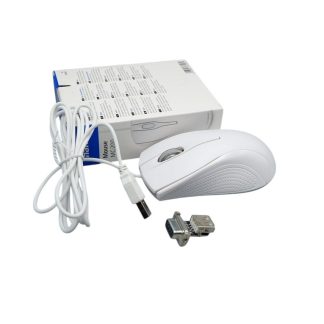
Also available as an Optical upgrade kit with a new white optical mouse and USB to 9 pin adapter

Posted on

9-Pin Joystick to USB Adapter for PC – Retro Gaming Made Easy

Play Retro Games on Your PC with a 9-Pin (Atari Standard) Joystick to USB Adapter

If you’re a retro gaming enthusiast, nothing beats the nostalgia of using a classic joystick to play your favorite games. Now, with our 9-pin (Atari standard) joystick to USB adapter, you can connect vintage DE-9/DB9 joysticks to any Windows PC or laptop—bringing retro gaming into the modern era with ease.

What is a 9-Pin Joystick to USB Adapter?

The 9-pin joystick to USB adapter allows you to use 4-direction, 1-fire button joysticks, the classic standard for many vintage gaming consoles, on modern Windows computers. Perfect for emulators and retro gaming setups, it ensures that your favorite joysticks stay compatible and fully functional.

Features and Benefits

  • Plug-and-Play: No drivers required—simply plug in and start playing.
  • Wide Compatibility: Works with both vintage and modern 9-pin joysticks.
  • Perfect for Emulators: Supports all popular retro emulation software on Windows PCs and laptops.
  • Compact and Durable: Small, lightweight design built for long-lasting use.

Compatible Joystick Models

Our adapter supports most 9-pin joysticks, including these popular models + ALL Atari / Kempston compatible 9 pin Joysticks

Vintage Joysticks:

  • Atari CX Stick
  • Competition Pro
  • Zipstick
  • Quickshot Joysticks
  • Konix
  • Suncom Tac
  • Cheetah

Modern Joysticks:

  • ArcadeR Joystick
  • Monster Joystick

Other Compatible Models:

  • Suzo Happ Competition
  • Wico Command Control
  • TopTronics Joysticks

Whether you’re playing Pac-Man, Street Fighter, or Commodore 64 classics, this adapter delivers smooth and responsive controls.

Why You Need a 9-Pin to USB Adapter

Modern PCs no longer include DE-9 joystick ports, making retro hardware obsolete—unless you have this adapter. With it, you can:

  • Enjoy authentic gameplay with original joysticks.
  • Play classic games on modern PCs without lag.
  • Expand your retro gaming setup with minimal cost.


Ideal for Retro Gaming Enthusiasts

This adapter is perfect for retro gamers, collectors, and anyone who loves the authentic feel of vintage joysticks. It’s especially useful for:

  • Arcade cabinets with PC cores
  • Emulation setups on Windows PCs and laptops
  • Gamers who want a nostalgic feel with modern convenience

Final Thoughts

Don’t let outdated hardware stop your gaming fun. With the 9-pin joystick to USB adapter, you can revive your favorite joysticks—from Atari CX Stick to Monster Joystick—and enjoy a true retro gaming experience on modern PCs.

Posted on

USB to 9 Pin Adapter for Amiga, Atari ST & CD32 | Use Modern Controllers

Play Classic Games with Modern USB Controllers on Your Commodore Amiga and Atari ST

Love your Commodore Amiga or Atari ST, but tired of struggling with old joysticks? With our USB to 9-pin DE9/DB9 adapter, you can now use modern USB gamepads and joysticks on these vintage systems—including the Amiga CD32—without any hassle.

Why You Need a USB to DE9 Adapter

Vintage computers rely on 9-pin DE9 ports, which aren’t compatible with today’s USB controllers. That’s where a USB to DE9 adapter comes in. It converts modern USB signals into the format your classic system expects, letting you enjoy retro gaming with the comfort of today’s controllers.

Our adapters work perfectly with:

  • Retrogames Ltd controllers

  • TheGamePad

  • TheQuickShot2

  • C64 Joystick

  • Speedlink Competition Pro Joystick

  • Logitech F310 and F710 gamepads

…and many more USB controllers, ensuring you can play on Amiga, Atari ST, and Amiga CD32.

Features of Our USB to DE9 Adapters

When choosing an adapter, look for:

  1. Plug-and-play simplicity – just connect and play

  2. Supports multiple USB controllers – works with gamepads and joysticks from major brands

  3. High responsiveness – accurate inputs for fast-paced games

  4. Durable design – made for long-term use on vintage hardware

How to Connect Your Controller

  1. Connect your USB controller (e.g., Logitech F310, Retrogames Ltd, or Speedlink Competition Pro) to the adapter

  2. Plug the adapter into your Amiga, Amiga CD32, or Atari ST joystick port

  3. Power on your system and start playing—no drivers or software hacks required


Who Should Get a USB to DE9 Adapter?

  • Retro gamers looking for a modern controller experience

  • Players who want to protect vintage joystick ports

  • Anyone who owns a Commodore Amiga, Amiga CD32, or Atari ST

Why Buy From Us?

Our adapters are specially built for retro systems. We prioritize quality, reliability, and easy setup so you can focus on gaming, not troubleshooting.

We also provide:

  • Fast shipping

  • Secure payment options

  • Dedicated customer support

Upgrade Your Retro Gaming Today

Don’t let outdated joysticks hold you back. Use modern USB controllers with your Commodore Amiga, Amiga CD32, or Atari ST using our USB to DE9/DB9 adapter. Compatible with controllers like TheQuickShot2, Retrogames Ltd, C64 joystick, Speedlink Competition Pro, and Logitech F310/F710, your classic games have never been more fun or comfortable to play.

Play Amiga CD32 Games and WHDLoad Conversions with full 7-Button CD32 Mode Support

For Amiga enthusiasts who want the full Amiga CD32 experience, there’s a special adapter designed to bring modern USB controllers to both Amiga CD32 consoles and regular Amiga computers.

Unlike standard USB to DE9 adapters, this adapter fully supports the 7-button mode, which is required for many CD32 games and WHDLoad CD32 conversions.

With this adapter, you can:

  • Use modern USB specific gamepads and Joysticks on Amiga CD32 games that require 7 buttons

  • Play WHDLoad game conversions on classic Amiga computers with complete button functionality and still use as in standard joystick mode in Amiga games

  • Avoid the limitations of traditional 2-button or 3-button joystick adapters

  • Enjoy plug-and-play setup with no drivers or software tweaks required

Whether you’re playing action-packed CD32 titles or classic WHDLoad conversions, this adapter ensures reliable gameplay giving you the comfort of modern gaming controllers while preserving your vintage hardware.

Also available is a SNES Style USB Gamepad that includes the CD32 adapter – simple solution to expensive and hard to find original CD32 game controllers

Posted on

CD32 Gamepad & Amiga Controller – 7 Button Replacement for Retro Gaming

CD32 Gamepad: The Classic Controller That’s Becoming Hard to Find

For fans of the Amiga CD32, the CD32 gamepad is more than just a controller—it’s a key part of the retro gaming experience. Released in the early 1990s, this controller was designed specifically for the CD32 console and offered 7-button support in CD32 mode, giving players full access to the console’s rich library of games. Whether you’re playing fast-paced platformers, action-adventures, or shooters, the CD32 gamepad allowed for precise control and gameplay that was unmatched by standard joysticks of the era.

While the original design was intended to be ergonomic, not every player loved the shape of the controller. Some found it less comfortable than other classic controllers, especially during extended gaming sessions. Still, the CD32 gamepad remains a defining accessory for the console, and its unique button layout continues to be appreciated by collectors and retro gamers alike.

Why Original CD32 Controllers Are Rare

Over the years, working CD32 controllers have become increasingly difficult to find. Many have suffered from wear and tear, including sticky buttons, broken cables, or faulty connectors. For collectors and retro gaming enthusiasts, locating a CD32 gamepad in good working condition can be a challenge—and when they do appear, prices can be surprisingly high. This scarcity makes replacement solutions highly desirable for anyone looking to enjoy CD32 games without compromising control or performance.

Features That Made the CD32 Gamepad Stand Out

  • 7 buttons in CD32 mode for full gameplay functionality.

  • Compatibility with both CD32 consoles and Amiga computers in standard joystick mode.

  • Classic 1990s design for authentic retro gaming.

  • Durable construction (when in good condition) that was intended to withstand hours of gameplay.

Despite some criticism of its shape, the CD32 controller is still celebrated for its versatility and the way it enhanced the gaming experience compared to typical one- or two-button joysticks.

Modern Replacement Options

For those who can’t find a reliable original, modern replacement gamepads offer a practical solution. Many of these replacements are designed in a familiar SNES-style layout, making them comfortable for extended gameplay while keeping the classic retro feel.

Importantly, these replacement gamepads come with a USB to 9-pin adapter, allowing them to work with both CD32 consoles and Amiga computers. They can operate in either standard Amiga joystick mode or full 7-button CD32 mode, giving you the flexibility to enjoy all your favorite games exactly as they were meant to be played.

Whether you’re restoring a retro setup, completing a collector’s console, or just looking for a dependable controller to play your CD32 games, these replacement gamepads provide compatibility, convenience, and a modern twist on a classic design.

Conclusion

Original CD32 gamepads are becoming increasingly rare, and finding one in good condition is no easy task. With 7-button support, versatile compatibility, and a unique retro design, the CD32 controller remains a cornerstone of the Amiga CD32 experience. Fortunately, replacement SNES-style gamepads with USB to 9-pin adapters now allow gamers to enjoy CD32 consoles and Amiga computers fully, whether in standard joystick mode or full CD32 mode.

These modern replacements ensure that retro gaming enthusiasts can continue enjoying classic games with reliable performance, without the frustration of hunting for a rare original controller.

Posted on

Amiga Joystick Adapters – Complete Guide to Classic, USB & Modern Options

Looking to use modern joysticks or controllers with your classic Amiga? This guide covers everything about Amiga joystick adapters, including USB, PS/2, and wireless options, compatibility with all models, troubleshooting, and recommended adapters.

What Is an Amiga Joystick Adapter?

Classic Amiga joysticks use a DE-9 (DB9) port with digital signals for X/Y movement and buttons. Modern joysticks (USB, wireless, or console controllers) require an adapter to interface with these ports.

  • Compatible with A500, A600, A1200, A2000
  • Adapters convert USB, PS/2, or wireless signals to DB9 format
  • Enables use of modern controllers in retro games

Types of Amiga Joystick Adapters

USB-to-Amiga DB9 Adapters

Allows connection of USB joysticks/gamepads to Amiga. Works with most PC gamepads and modern controllers. Some adapters are plug-and-play, others require firmware.

PS/2-to-Amiga Adapters

Converts PS/2 joysticks or mice to DB9. Reliable, low latency, and supports classic PS/2 controllers.

Wireless & Bluetooth Adapters

Allows modern wireless controllers to work with Amiga. Usually requires a USB-to-DB9 interface. Check compatibility for latency-sensitive games.

Amiga Joystick and Gamepad Compatibility Table

Adapter Type Compatible Amiga Models Supports USB/Wireless Notes
USB-to-DB9 Adapter A500, A600, A1200, A2000 ✔ USB Compact, plug-and-play, reliable
Bluetooth Adapter + USB DB9 A600, A1200 ✔ Wireless gamepads May require firmware updates

How to Connect a USB Joystick to Your Amiga

  1. Turn off your Amiga.
  2. Connect your USB joystick to the USB-to-DB9 adapter.
  3. Plug the adapter into the joystick port.
  4. Power on your Amiga.
  5. Test in your favorite games or Workbench apps.

Tip: Some adapters include sensitivity settings — adjust them for smoother control.

Troubleshooting Common Issues

Joystick Not Working

  • Ensure adapter compatibility with your Amiga model
  • Try a different USB controller
  • Do not use hubs for USB connections

Buttons Don’t Register

  • Check if adapter supports extra buttons the Trumouse CD32 adapter allows upto 7 buttons in cd32 mode
  • Some adapters only map the one or two buttons to DB9 – most amiga games only support 1 fire button

Which Amiga Joystick Adapter Should You Buy?

Adapter Pros Cons Best For
USB-to-DB9 Adapter Plug-and-play, reliable Limited to first two buttons for some adapters Most users
PS/2 to DB9 Adapter Very low latency No USB support Classic joystick feel
Bluetooth Adapter + USB Wireless, flexible May require firmware updates Wireless convenience, casual gaming

FAQ

Can I use a modern USB joystick on an Amiga?

Yes, using a compatible USB-to-DB9 joystick adapter.

Does the adapter work with A500, A600, and A1200?

Most USB adapters work across these models, but always check the product details.

Can I use wireless controllers?

Yes, with Bluetooth or USB-to-DB9 adapters designed for wireless input.

Do all adapters support all buttons?

No, some only map the first two buttons; check the adapter specs for extra button support.

Recommended Products

Posted on

Amiga Mouse – Complete Guide to Classic, Modern & USB Adapter Options

Discover everything about Amiga mice – from classic tank mice to modern USB optical upgrades, compatibility tips, troubleshooting, and recommendations for every Amiga model.

What Is an Amiga Mouse?

The Commodore Amiga originally used a DB9 or DE9 port mouse with a mechanical ball and rollers.

Known as “tank mice,” they offered durability and precise control in games and Workbench applications.

Key points:

  • Uses quadrature signals instead of USB
  • Standard 2-button configuration
  • Compatible with Amiga 500, 600, 1200, 2000
  • Requires cleaning and maintenance over time

Classic mice are nostalgic, but many users face worn rollers, dirty balls, or inconsistent tracking, making modern upgrades popular.

Classic Tank Mouse Options

Original Tank Mice

  • Pros: Authentic feel, works natively
  • Cons: Requires maintenance ball picks up dirt and debris, worn buttons/rollers
  • Required regular cleaning, may not work well on smooth surfaces better on a mouse mat

Wireless Tank Mouse Reproductions

  • Pros: Nostalgic design, wireless convenience
  • Cons: Requires DB9 adapter, minor latency possible

Modern USB Mouse Options

With the right USB-to-DB9 adapter, almost any USB optical mouse can work on your Amiga. Advantages include smooth tracking, scroll wheel support (if supported by adapter), and easy replacements.

Compatibility Table

USB Mouse Adapter Needed Works On Notes
Logitech M170 USB→DB9 A500 / A1200 Simple plug-and-play
Microsoft Basic IntelliMouse USB→DB9 A600 / A1200 PS/2 compatibility via some adapters
Generic Optical Mouse USB→DB9 Most Amiga Systems Best for Workbench productivity

How to Connect a USB Mouse to Your Amiga

  1. Turn off your Amiga.
  2. Connect a USB→DB9 adapter to the mouse port.
  3. Plug in your USB mouse.
  4. Power on the Amiga.
  5. Test movement in Workbench or games.

Troubleshooting Common Issues

Mouse Moves Too Fast or Too Slow

  • Adjust sensitivity via adapter if available
  • Avoid high-DPI gaming mice

Mouse Not Detected

  • Try a different USB mouse
  • Do not use a hub
  • Confirm Amiga mouse port works with original mouse

Erratic Movement

  • Check for clean power supply
  • Avoid wireless mice unless adapter supports Bluetooth

Which Amiga Mouse Should You Choose?

Mouse Type Pros Cons Best For
Original Tank Mouse Authentic, no adapter needed Worn parts, maintenance required Nostalgia
Wireless Tank Classic design + wireless Adapter required, slight latency Casual retro use
USB Optical Smooth, reliable, scroll support Adapter required Productivity, modern upgrades
PS/2 Optical Moderate cost, plug-and-play Adapter required Budget-friendly upgrade

FAQ

Can I use a USB mouse on my Amiga?

Yes, with a compatible USB→DB9 mouse adapter.

Does the Tank Mouse require drivers?

No, classic tank mice work natively. Wireless Tank versions may require the adapter driver.

Which Amiga models support USB adapters?

Most DB9 port systems: A500, A600, A1200, A2000. Always check adapter documentation.

Are modern mice better than original tank mice?

For smooth tracking and scroll support, yes. For authenticity, original tank mice are preferred.

Recommended Products

Posted on

How to Use a Modern USB Mouse on a Commodore Amiga Complete Guide

Looking to use a USB mouse on your Commodore Amiga? Whether you’re restoring an A500, upgrading an A1200, or using an Amiga with modern accessories, switching to a USB mouse can dramatically improve precision, comfort, and reliability.

In this guide, we’ll explain:

  • ✅ How Amiga mouse ports work

  • ✅ What you need to connect a USB mouse

  • ✅ Compatibility tips (wired & wireless)

  • ✅ Common problems and how to fix them

  • ✅ The best type of USB mouse for Amiga systems


Why Upgrade to a USB Mouse on the Amiga?

Original Amiga tank mice are iconic — but they often suffer from:

  • Worn microswitches

  • Dirty or failing ball mechanisms

  • Poor tracking compared to modern optical sensors

  • Limited availability of good-quality replacements

Using a USB optical mouse with an Amiga-compatible adapter gives you:

  • Smoother tracking

  • Higher precision in Workbench and games

  • Scroll wheel support (on compatible adapters)

  • Easy replacement if the mouse fails

For many Amiga users, this is one of the simplest and most noticeable upgrades.


How the Amiga Mouse Port Works

The Commodore Amiga uses a DB9 (9-pin) mouse port that reads quadrature signals rather than USB data.

  • You cannot plug a USB mouse directly into the Amiga.

  • A dedicated USB to Amiga mouse adapter is required.

  • The adapter converts USB movement data into signals the Amiga understands.

This applies to:

  • Amiga 500 and A500 Plus

  • Amiga 600

  • Amiga 1200

  • Desktop Case Amiga’s 1000 15000 2000 3000 4000

  • Amiga CD32


What You Need to Connect a USB Mouse to an Amiga

To use a modern mouse on your Amiga, you will need:

  1. A USB to Amiga mouse adapter

  2. A compatible USB mouse (wired is recommended)

  3. Your Amiga computer with a working mouse port


Best USB Mouse Types for Amiga

Not all USB mice behave the same way when used with adapters.

✅ Recommended

  • Standard wired USB optical mice

  • 3-button mice

  • Basic plug-and-play models (no software required)


Step-by-Step: Connecting a USB Mouse to an Amiga

Turn off your Amiga First

  1. Connect the adapter to the Amiga mouse port.

  2. Plug your USB mouse into the adapter.

  3. Power on your Amiga.

  4. Test movement in Workbench.

Most adapters are plug-and-play and require no additional software.

If your adapter supports scroll wheel or additional buttons, check whether a driver or tool is required, the TruScroll Adapter needs the driver installed, see link below for install instructions :

Commodore Amiga Scroll Wheel Mouse Setup: Easy Driver Installation Guide


Troubleshooting USB Mouse Problems on Amiga

Mouse not detected?

  • Try a different USB mouse, the amiga is limited to how much current it can supply from the mouse port most mice work fine, but high end gaming mice or mice with RGB lighting may need too much current – best to stick with standard mice or wireless mice like the Logitech MX Series


Can You Use a Wireless Mouse on an Amiga?

Yes — but with limitations.

Some USB wireless dongle mice work well. However:

  • Bluetooth mice only work if the adapter supports Bluetooth.

  • Recommended to use a Logitech MX series, or any Logitech wireless mouse that uses the Unifying USB Receiver – these are fully compatible with the TruMouse and TruScroll mouse adapters


Is a USB Mouse Better Than an Original Amiga Mouse?

For everyday Workbench use — absolutely.

For retro authenticity — that’s personal preference.

Many users keep an original tank mouse for nostalgia but use a modern optical USB mouse for regular operation and less maintenance


Final Thoughts: Modern Comfort for a Classic Machine

Upgrading to a USB mouse on your Commodore Amiga is one of the easiest ways to improve usability while preserving the classic experience.

With the right adapter and a compatible mouse, you’ll enjoy:

  • Smoother tracking

  • Better precision

  • Easy replacements

  • Long-term reliability

If you’re looking for a reliable solution designed specifically for Amiga systems, check out our compatible adapters here:

Posted on

Commodore Amiga Scroll Wheel Mouse Setup: Easy Driver Installation Guide

If you’re a retro computing enthusiast, a Commodore Amiga with a scroll wheel mouse can make navigating Workbench and apps a breeze. In this guide, we’ll walk you through installing mouse drivers on your Amiga and enabling full scroll wheel functionality in Workbench.

Why a Driver Is Essential

AmigaOS 3.2+ has built-in scroll wheel support in the OS, the system still needs a compatible mouse driver to communicate with your hardware. Without the driver, the OS won’t recognize your mouse, and the scroll wheel won’t work. If you are on AmigaOS lower than 3.2 you will also need to install freewheel utility to enable windows to scroll in Workbench.

FreeWheel Utility By Alastair M. Robinson

https://aminet.net/util/mouse/FreeWheel.lha

What You Need for Your Amiga Scroll Wheel Setup

  • A Commodore Amiga running OS 2.04  or later – ***Note AmigaOS 3.2 or later does not require freewheel but does still need the mouse driver to be running or installed

  • The TruScroll Mouse Adapter or Mouse Upgrade

Step 1: Connect Your Mouse or Adapter

Plug your TruScroll mouse adapter into your Amiga (with the power off)

Step 2: Download and Install or run the Mouse Driver

Download the TankMouse Driver by Szymon Bieganski from the link below

https://aminet.net/driver/input/TankMouse.lha

Step 3: Test Scroll Wheel Functionality

If using Kickstart Open a Workbench window or a compatible application and try the scroll wheel. With the driver installed, you should be able to scroll through icons, lists, and documents smoothly

You can also use the utility RAWKEY utility to see scroll commands being received from the mouse

Posted on

amiga mouse right click fix adapter

Some later model Amiga 1200 computers have an issue useing mouse adapters that stops the right mouse click from being detected

Trumouse now have an adapter that fixes this problem and also works on all other amiga models, see product link below

Posted on

clean 3.5 floppy drive head

clean 3.5 floppy drive head

PC head cleaning utilities, along with a cleaning disk are a simple way to clean contaminated magnetic read write heads without needing to disassemble the drive

During normal use and using old disks causes dust, dirt and contamination to build up on the drive heads, this can cause read and write errors

A cleaning disk can be used dry or wet by adding a few drops of isopropyl alcohol, the spinning cleaning media in the disk cleans the heads and removes contamination allowing the heads to function correctly

Links to Windows software to clean your disk drive with a TruMouse cleaning disk

There are two versions of the software available one is for older PC’s with floppy drives that are connected directly to the motherboard by ribbon cable and the second is for external USB floppy drives commonly used with more modern PC’s and laptops

USB Drive cleaner is compatible with Windows 7 onwards

Download Links

Posted on

Atari ST Joystick Pinout

Atari ST 9 pin Male D Sub Mouse and Joystick Port pinout / Port 1 is shared with Mouse – Port 2 is Joystick Only

  • Pin 1  = Up (Also acts as mouse direction on port 1)
  • Pin 2 = Down (Also acts as mouse direction on port 1)
  • Pin 3 = Left (Also acts as mouse direction on port 1)
  • Pin 4 = Right (Also acts as mouse direction on port 1)
  • Pin 5  = Not Connected on Joysticks (Acts as middle mouse button / scroll-wheel button on port 1)
  • Pin 6 = Fire Button 1 (Also acts as mouse button on port 1)
  • Pin 7 = 5 Volts DC- Power Supply from computer
  • Pin 8 = Ground
  • Pin 9 = Fire Button 2 (Also acts as mouse button on port 1)

Atari ST computers have two 9 pin D SUB type connectors with male pins, Port 1 is  used for connecting a mouse, but for two player gaming the mouse can be unplugged and two joysticks or other game controllers can be connected at the same time.

The controller needs to be compatible with the Atari or Kempston standard such as Competition Pro, ZipStick, QuickShot, Atari, Cheetah etc are supported

For two player games with two controllers you will have to unplug the mouse, unless you use a joystick switcher

Atari ST mouse adapters are now available than allow modern USB mice to be used with the 9 pin mouse port

Posted on

Amiga XCopy Cyclone Dongle Disk Copier

XCOPY COMPATIBLE CYCLONE DONGLE

Now available a replacement compatible auto-switch cyclone dongle, ideal if you have lost your original and a cost effective alternative to finding one on places like eBay

The TruMouse Cy-Clone dongle is an active auto-switch dongle that can be left permanently connected to your external drive, and is fully compatible with the later Cyclone copier software that needs a version T2 dongle to work

This dongle allows the more advanced modes Nibble, Deep Nibble, APWM and Sync disk copy modes and the disk verify mode in the cyclone software to help backup protected disks

How to backup protected Amiga disks with Cyclone 

The Cyclone disk copier software is controlled using only keyboard keys, not the mouse

SPACE BAR = CHANGE COPY MODE

ARROW KEYS = CHANGE START AND END TRACK VALUES 

RETURN KEY = STARTS DISK OPERATION


Rob Smith has a very informative YouTube video explaining how XCopy and Cyclone works

Posted on

The C64 Mini 9 pin joystick adapter – Compatible with the Maxi

Introducing the RetoJoy Joystick Adapter use classic Joysticks with this 9 pin to USB interface for the C64 mini 

Use your favourite classic joystick from the 1980’s on “The C64” mini and the full size Maxi from Retro Games

Classic sticks like Competition Pro, Zipstick, Quickshot, Cheetah, Konix, Powerplay etc , any Atari and Kempston Joystick with a 9 Pin D Plug 😊

The compact adapter connects directly USB and has a 9 pin socket for Joystick to plug into

No setup required – just plug in and play – Adapter has a beige case to match the C64 console, also compatible with the full size Maxi C64

Posted on

Guide how clean floppy disk drive without disassembly

An easy way to clean the magnetic read / write heads on a 3.5″ floppy drive is to use a trumouse cleaning disk

The disk can be used dry or wet, to use wet just add a couple of drops of isopopyl alchohol to the white disk material before inserting into the drive

Below are download link for Amiga, Atari ST and PC DOS software that will work with the cleaning disk

Floppy Drive Head Cleaning Software Download 

Amiga Floppy Drive Head Cleaning Software

Atari ST Floppy Drive Head Cleaning Utility

DOS DISK DRIVE CLEANING UTILITIES

The DOS cleaning utilities are for vintage systems that run MS DOS, the .ZIP archive contains two drive cleaning tools Cleaner.exe and Floppy Disk Scrubber.com

typing Cleaner.exe into the DOS command line will start the drive cleaning program

To run floppy disk scrubber you need to type flopscrb.com followed by the disk drive letter A or B and then the amount of seconds you want to clean the disk, example commands below cleans drive A: for 25 seconds

“flopscrb.com a 25”

   Screenshot of Cleaner.exe – PC drive cleaning software

Posted on

The Spectrum Joystick Adapter – Use vintage 9 pin Joysticks

Retrogames The Spectrum 9 pin Joystick Adapter

Use classic 9 pin 1980’s Joysticks on your Retro Games The Spectrum, use your favourite classic Kempston / Atari compatible 9 pin D connector joystick’s like the Atari CX, Competition Pro, Zip Stick, Quickshot etc

Use any 9 pin Atari / Kempston standard joystick on TheSpectrum console with the RetroStick adapter, converts 9 Pin Joysticks with D connector to USB

Adapter case is black to match TheSpectrum, compact design wont black adjacent ports


Posted on

3.5″ floppy disk cleaning kit

How to clean a floppy disk drive, the easy way

Floppy cleaning disks for any 3.5″ floppy drive are now available, our cleaning disks can be used wet (with isopropyl alcohol) or dry and can clean the read write heads, recommended if you are using old floppies that have deteriorated with age

The cleaning disks are supplied on there own, if you want to use them wet just use 2 drops of 100% isopropyl alcohol to the white inner disk material, this can be purchased online or from a chemists shop in the UK, it is flammable so please read the warning label and take care when using it.

FREE Floppy Disk Cleaning software for Amiga, Atari ST and PC

Not required but you can download these free disk cleaning utilities that move the heads over the cleaning disk to ensure a thorough clean of the magnetic read/write heads

Download link below contains floppy disk head cleaning software for the Commodore Amiga, you will need to extract the archive onto a disk and run the “HeadCleaner” executable in Workbench

Amiga Floppy Drive Head Cleaning Software

Atari ST Floppy Drive Head Cleaning Utility


Alternatively on an Amiga, ST or Archimedes just insert the disk and wait a few seconds, eject and then repeat the drive will try to read the cleaning disk and this will clean the heads.

Posted on

Wireless Mice for Commodore Amigas

Following requests from customers to stock an affordable wireless mouse in white colour to match the popular 600 and 1200 machines, its now available for sale

The white mouse is a good match for A600, A1200 and A4000 users but can be used on ALL Amiga computer models and the CD32

No batteries, Mouse has a built in rechargeable battery and can be charged with the included USB cable

Plug and Play – No setup required – Mouse includes a compact USB to 9 pin adapter – Just plug in and use


Posted on

Create Amiga Disks with FluxEngine on Windows or Mac

With FluxEngine software  you can read, write and access files directly on Commodore Amiga floppy disks and is compatible with the Trumouse Greaseweazle drive kit

First download the latest version of FluxEngine from the website below, there are Windows and Apple Mac Versions

https://github.com/davidgiven/fluxengine/releases

When intstalled and run you will see the main Fluxengine menu screen shown above


Posted on

adb to usb adapter

ADB to USB Adapter

The TruMouse adb adapter allows you to connect an apple adb Mouse or apple adb keyboard to a a standard usb keyboard for PC, Notebook, Raspberry pi or mini pc etc

Adapter has a custom 3D printed case and has a standard USB connector and provides a 4 pin socket at the back to connect either a keyboard or mouse

Posted on

amiga usb keyboard adapter

Amiga USB Keyboard Adapter

A Key USB keyboard adapter for Commodore Amiga Computers

The AKey USB keyboard adapter for all Amiga models, use any PC keyboard with your commodore amiga computer or CD32

The A500 version fits directly onto the keyboard header pins and provides a USB port to connect a keyboard

The A600 model fits onto the keyboard controller

The A1200  model fits over the keyboard controller – USB Extension with a custom trapdoor cover is also available to provide the the Amiga 1200 with an external USB port for keyboards

Reset from Keyboard just like a real Amiga!

Ctrl + Left Windows + Right Windows  = Reset

Ctrl + Left Windows + Menu Key

Menu Key keycaps – see photo below shows the menu key’s on PC keyboards


Multiple USB Keyboard’s with your Amiga !

Using a USB hub and the A Key  adapter will allow two USB keyboards at the same time on your Amiga, ideal for example if you need a wired keyboard on your desk and a maybe a second portable wireless keyboard, you just need to use a low cost USB hub like the one shown below to provide the USB ports.


Posted on

atari mouse on amiga

Atari mouse on amiga

Atari ST mice do share the same design as the Commodore Amiga but are pin incompatible due to Commodore and Atari’s rivalry the pins for the mouse signals are in different positions so that they could not be shared between brands

The simplest way to use a mouse on the Atari ST or Amiga is to use a dedicated mouse or a modern USB Mouse adapter, that allows standard PC USB mice to be connected

Posted on

amiga mouse adapter

Amiga Mouse Adapter

An amiga mouse adapter converts the position and mouse button signals from a standard mouse into a form that amiga computers can use

Modern adapters use USB and allow most PC mice to be used with Amiga computers, the adapter allows mice to plug into a USB socket and also has a 9 pin D plug that connects into the amiga Mouse port (joystick port 1) on the Amiga, all amiga computer model’s use the same 9 pin D connector

Posted on

Sharp X68000 Adapters and Upgrades

Sharp X68000 Adapters and Upgrades from TruMouse

The original Sharp keyboards now command high prices  and can be difficult to find, instead with our adapter – You can now use standard PC keyboards on your Sharp Tower with the super compact TruMouse PS/2 Keyboard adapter – Full Details Linked Below

                                                     PS/2 Adapter Installed on Sharp X68000 ACE
Posted on

Gotek Rotary Encoder Install for FDD-UDD U144K / ELS34E

The U144k Gotek pcb does not havy any connections on a header like the standard board, but you can solder the correct connections directly onto the Microcontroller if you have a steady hand

The 3rd and 4th pin from the right are connected to the encoder as shown in the hi resolution photo below


Posted on

Backup Copy Protected Amiga Disks

Some amiga disks are protected against copying by using a special non standard disk format that can not be copied using standard disk copy software

Some very basic protection can be copied using copiers that have a Nibble mode, such as X Copy , Tetra Copy, Nib , Burstnibbler

During the 1990’s various companies sold copy software that could backup some protections using disk to disk copying that made an analogue type copy of the disk data products such as Cyclone, Synchro Express and Blitz used this method.

A modern way of reading and writing any disk is to use a USB hardware board to directly control a floppy drive to make a direct copy of the magnetic flux data, one of the most popular and regularly updated tools is the Greaseweazle drive controller by Keir Fraser

The hardware can be easily controlled from a windows PC to read or write disk images for a multitude of different disk formats for different systems

Posted on

USB Gamepad for Commodore Amiga and Atari ST Computers

Special Offer for Atari ST or Amiga users who want a mouse adapter and gamepad type controller, instead of a joystick

The V2 adapter is now available with a compatible new & boxed Gamepad for just £5 more

**NOTE the adapter ONLY supports the included gamepad it wont support other model game controllers from other manufacturers

Gamepad gives 4 direction D PAD and a single fire button

Free UK Delivery – Worldwide Shipping

Posted on

TruMouse V2 stylish Amiga and Atari ST mouse adapter for wired and wireless mice

TruMouse V2 3D Printed case to match your system

Use the majority of wired and some wireless mice with your classic home computer

Fully compatible with the recreated wireless Tank Mouse

Compatible with all models of Commodore Amiga and Atari ST

Worldwide Tracked Shipping  / Free Delivery in the UK

Posted on

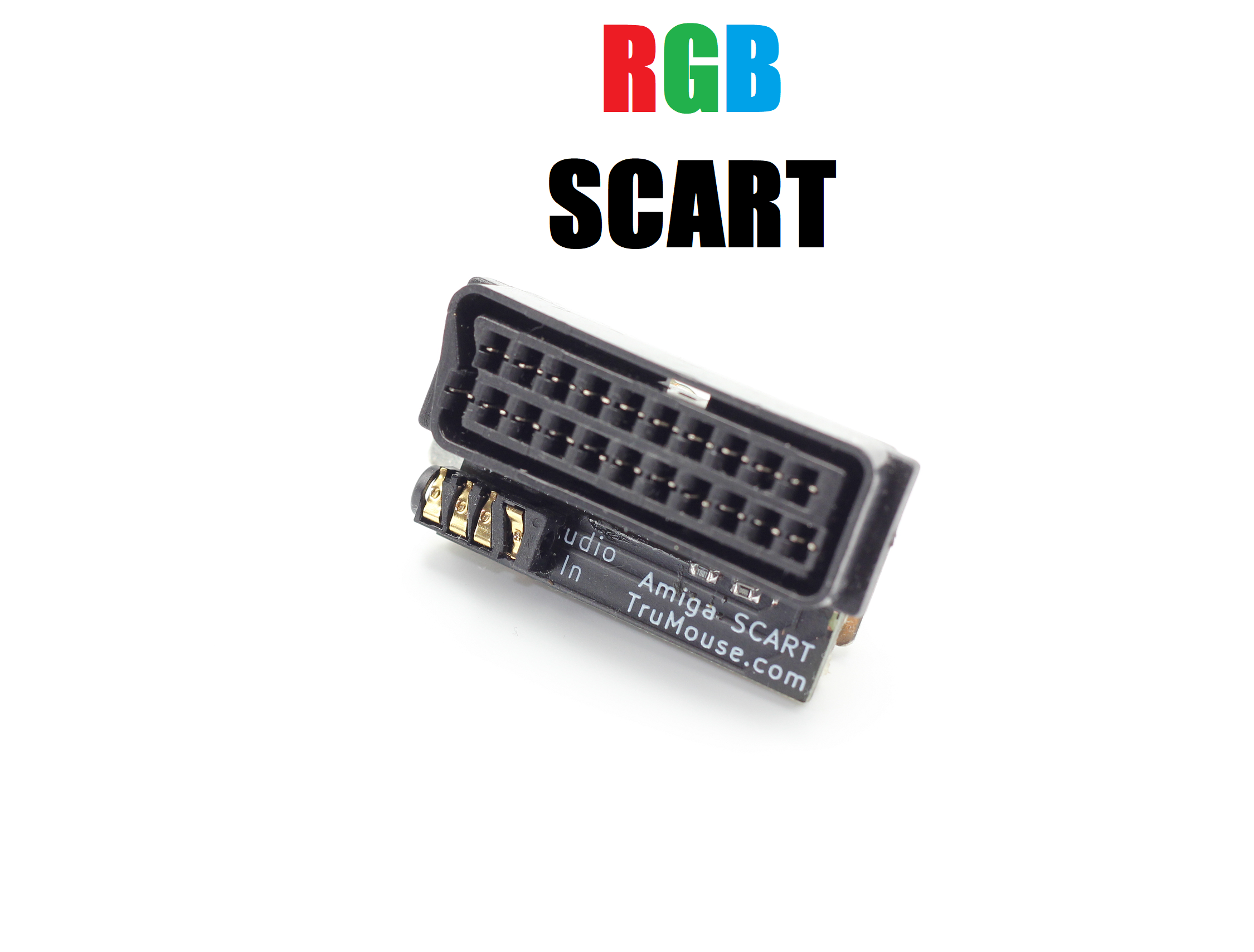
Commodore Amiga SCART TV Adapter a high quality RGB image without a Monitor !

There is an abundance of pre-owned SCART TV’s available in the UK and Europe and these can be a great alternative to expensive and hard to find original computer monitors from Commodore or Philips

The TruMouse SCART adapter connects directly into the back of all commodore Amiga computers and converts the video port into a native RGB scart output

The adapter also features an 3.5mm Stereo Audio Input socket so a simple Phono/RCA to Jack lead can be used to send the Amiga sound through the scart if you don’t have external speakers

The adapter has an auto-switch feature and supported TV’s will automatically switch over to the SCART AV Channel when the amiga is powered on

Having an adapter instead of a lead with a set length also means that any length of SCART cable can be chosen for your specific needs

The adapter is compatible with the vintage CRT TV’s and LCD or LED modern Scart TV’s

Here is some photo’s of the monitor screen taken with a camera showing the output from an Amiga 500 running Lemmings by DMA Design

Example Image’s taken of  a 22 inch JVC LCD TV 

Posted on

Use a Wii Nunchuck controller as a one handed Joystick on your vintage computer or console

If you have a vintage computer or console that uses the 9 pin DE9 socket like the Amiga, Atari ST, Atari 2600 etc

You can now use a standard nunchuck controller as one handed joystick using the ThumbStick adapter, just connect your wii nunchuck and plug in

The nunchuck thumb stick is used for direction control and the 2 trigger buttons are mapped to Fire button 1 and Fire button 2 as independent fire buttons ideal for games that can support one or two fire buttons on classic hardwar


Posted on

Macintosh Mouse – USB Mouse Adapter for classic Mac – Apple Macintosh Computers

For users of the original Apple Macintosh the original  9 pin Apple M0100 mice are becoming increasingly difficult to find in good working order, even if you can find one in working condition at a sensible price you still have to regularly clean the mechanical ball and rollers that will eventually collect dirt and effect performance. You can now solve this problem with a USB mouse adapter for your classic Mac.

                                           TruMouse VMac USB Mouse Adapter


A simple solution is to use a standard USB mouse with your classic Macintosh with a TruMouse VMac USB mouse adapter

Compatible with the majority of wired USB mice on your classic Macintosh, True USB HID interface – no software or drivers  needed, just plug in and use

The TruMouse Mac adapter is compatible with ALL vintage Macintosh Mac computers that used the 9 Pin Mouse Connector such as Macintosh 128k, Macintosh 512k and Mac Plus

The left mouse button will be mapped to a single mouse button, the adapter supports the majority of USB optical mice and some even some wireless USB models!

Wireless USB Mice on a vintage Apple Macintosh?

Yes the TruMouse MAC adapter is also compatible with wireless Logitech mice that use the Unifying USB receiver and most Philip’s branded Wireless Mice

Posted on

Retro Mouse Mat

We have a range of custom retro computing and retro-gaming themed mouse pads, ideal for use with you vintage home micro

A mouse mat, also known as a mouse pad, is a small pad that is placed on a desk or table to provide a smooth surface for a computer mouse to move on. The use of a mouse mat can provide a number of benefits for both the mouse and the user.

One of the main benefits of using a mouse mat is that it can improve the accuracy and precision of the mouse. A smooth surface allows the mouse to move more easily and accurately, which can be especially important for tasks such as gaming or graphic design. In addition, a mouse mat can also protect the surface of a desk or table from wear and tear caused by a mouse moving across it.

Another benefit of using a mouse mat is that it can help to reduce the amount of friction between the mouse and the surface it is moving on. This can help to make the mouse feel more responsive, and can also help to reduce the amount of wear and tear on the mouse itself.

In addition to these benefits, a mouse mat can also help to improve the overall comfort of using a computer mouse. Many mouse mats are designed with a soft, padded surface that can help to reduce the strain on the hand and wrist caused by prolonged use of a mouse. This can be especially helpful for people who spend a lot of time working on a computer.

Finally, a mouse mat can also be a stylish accessory for your work setup. Many mouse mats come in a variety of designs, colors and with different materials. Some mouse mats have designs that match with the gaming setup or office setup.

In conclusion, a mouse mat is a simple but effective accessory that can provide a number of benefits for both the mouse and the user. Whether you’re a gamer, graphic designer, or simply someone who spends a lot of time working on a computer, a mouse mat can help to improve the accuracy, precision, and comfort of using a mouse. It can also protect your desk or table from wear and tear and give a stylish look to your work setup. So, it is important to choose a suitable mouse mat to match your needs.

Posted on

amiga mouse adapter

Amiga Mouse Adapter

An Amiga mouse adapter is a device that allows you to connect a standard PC mouse to an Amiga computer. This allows you to use the same mouse you use on your modern computer with your vintage Amiga, making it much easier to navigate and use the system.

The classic Amiga tank mouse has a unique and classic design but is not very ergonomic or comfortable in the hand for modern day use, the mouse also uses a mechanical ball to track movement and these need to be cleaned regularly – modern optical sensors work on the majority of surfaces and require little or no maintenance.

This is where the Amiga mouse adapter comes in. The adapter allows you to connect a standard PC mouse to your Amiga computer, so you can use the same mouse you use on your modern computer with your vintage Amiga. This makes it much easier to navigate and use the system, especially for those who are used to using a two-button mouse.

The Amiga mouse adapter is a simple device that is easy to use. Simply plug the adapter into the Amiga’s mouse port, and then connect your PC mouse to the adapter. Once connected, your PC mouse will work just like the Amiga mouse, with the added benefit of being able to use the standard two-button layout.

There are many different types of Amiga mouse adapters available on the market, the TruMouse amiga mouse adapter is compatible with the vast majority of wired PC mice and even works with most wireless mice from Logitech and Philips.

Overall, an Amiga mouse adapter is a great way to make your vintage Amiga computer more user-friendly. With the ability to connect a standard PC mouse, you can easily navigate and use your Amiga, making it a more enjoyable experience. Whether you’re a retro gaming enthusiast playing Lemmings or just using Workbench and applications, an Amiga mouse adapter is a must-have accessory for any Amiga computer owner.

Posted on

History of 16 Bit Home Computers

The 16-bit computer era began in the early 1980s, with the introduction of several new personal computers that were more powerful and capable than their 8-bit predecessors. These computers were built with 16-bit microprocessors, which allowed them to process more data and perform more complex tasks than the 8-bit computers that came before them.

One of the most significant 16-bit computers of this era was the Commodore Amiga, which was first introduced in 1985. The Amiga was known for its advanced graphics and sound capabilities, and it was popular among gamers, graphic designers, and musicians. It featured a custom chipset that provided advanced features such as sprites, blitter and a custom audio processor, that allowed it to produce high-quality graphics and sound, that was not available on other computers at the time.

Another popular 16-bit computer of the era was the Atari ST, which was introduced in 1985. The Atari ST was a direct competitor to the Amiga and it also had advanced graphics and sound capabilities. The Atari ST was primarily marketed as a business computer, but it also found a following among musicians and gamers. It featured a Motorola 68000 CPU and a custom sound chip, that allowed for high-quality audio.

In the United Kingdom, the Acorn Archimedes was a 16-bit computer that was introduced in 1987. It was developed by Acorn Computers and it was primarily used in schools and universities. The Archimedes featured a 32-bit ARM CPU and its own custom OS (RISC OS), that made it a powerful machine, especially in math and scientific calculations.

These 16-bit computers brought significant advancements in technology and they were popular among a wide range of users. They allowed users to perform complex tasks, such as graphic design, music composition, and video editing, that were previously not possible on 8-bit computers. The Amiga, Atari ST, and Acorn Archimedes were all considered to be cutting-edge technology at the time of their release and they helped pave the way for the development of more powerful computers in the years to come.

Overall, the 16-bit era of personal computers was an important time in the development of technology and it marked a significant advancement in the capabilities of personal computers. The Amiga, Atari ST, and Acorn Archimedes were all significant players in this era, and they helped to shape the future of computing by introducing new features and capabilities that were not available on previous 8-bit computers.

Posted on

History of the computer Mouse

The computer mouse is a device that is used to point, click, and select items on a computer screen. It was first invented by Douglas Engelbart in the 1960s as a way to improve the way people interact with computers.

Before the invention of the mouse, the main way to interact with a computer was through the use of a keyboard. While this was effective for typing and entering commands, it was not very efficient for navigating and selecting items on the screen. Engelbart recognized this limitation and set out to create a more intuitive and efficient way to interact with computers.

In 1963, Engelbart began working on his invention at the Stanford Research Institute. He experimented with different shapes and designs, eventually settling on the classic “ball mouse” design that is still in use today. The ball mouse used a small ball inside the device that could be rolled in any direction, which would in turn move the cursor on the screen. This design allowed for much more precise movement and control than was possible with a keyboard.

In 1968, Engelbart and his team demonstrated the mouse for the first time at a computer conference. The demonstration was a huge success, and the mouse quickly became an essential tool for computer users everywhere. In the 1970s, the mouse began to be included with personal computers, and it has since become one of the most widely used input devices in the world.

In the 1980s, the mouse underwent several improvements, including the introduction of the optical mouse. This type of mouse used a small camera to track movement rather than a ball, which made it more precise and reliable. Today, most mice use this technology, and they have become even more advanced, with features such as added buttons, wireless connectivity, and gesture recognition.

Overall, the computer mouse has played a crucial role in the development of modern computing. It has greatly improved the way we interact with computers, making them much more accessible and user-friendly. The invention of the mouse has been a significant step in the evolution of human-computer interaction and it continues to be an essential tool for many people today.

Posted on

Amiga Keyboard USB Adapter

This adapter converts original Amiga keyboard’s to become a standard PC USB keyboard, this makes it easy to install into a case if building an emulated system based on Emulation such as WinUAE, Amibian or an A500 Mini, Raspberry Pi, Mister, Android Box or a PC

The A500 Keyboard plugs directly onto the adapter and you can connect the adapter with a standard Micro USB Cable

Conversion leads are available from us for existing Amiga 2000/3000 and 4000 external keyboards or you can install your A500 or A500 Plus keyboard into an external case like the Checkmate  1500

If instead  you want to use a USB keyboard on your Amiga then please see the AKey adapter below


Posted on

Guide to using Greaseweazle Floppy Disk Hardware Kit

This guide shows how to install Greaseweazle software (created by Keir Fraser) with an easy to use graphic user interface on a Windows PC

Main Greaseweazle Windows Software

https://github.com/keirf/greaseweazle/releases/download/v1.23/greaseweazle-1.23-win64.zip

Graphic User Interface for Greaseweazle from Desert Sage Solutions

https://desertsagesolutions.com/software/greaseweazle/windows/GreaseweazleGUI-v2.128.zip

Unzip the main Greaseweazle folder to your Windows desktop from the first download link

Unzip all the files  from the second download link and copy it into the first Greaseweazle folder you just extracted

**Note (ALL GUI file need to be inside the main Greaseweazle Folder to work correctly)

Now open GreaseweazleGUI.exe, by double clicking and you will see the  menu screen below

Greaseweazle GUI Settings

If your Greaseweazle hardware is connected it will show as a device inside the USB Serial ports window, to ensure the hardware is working reliably you first need to check the  data speed, It’s recommended to only use a direct connection to your PC motherboard USB 2 or faster ports, front panel USB ports and hubs may slow down the connection and cause problems and errors.

Now to test the connection speed, select “Measure Bandwidth” from the middle row, then click the “Select” button

You will now see a command window and it will give a speed reading, the test will tell you if your connection is too slow to be reliable, run the test a few times to get a consistent reading, if your connection is too slow try a different USB port on your computer or use different or shorter usb cable.

Once the speed test has passed successfully you are then ready to read and write floppy disc images, if you get verify errors when trying to write a disk try a different disk, many Double Density disks will now be over 30 year old and may be contaminated with dirt or dust or have degraded magnetic coating this  can cause verify read and write errors, for older disks try using the “erase disk” function first before trying to write an image to disk.

Setting DiskDefs 

To update  Disk image Definition’s  supplied with the greasweazle gui download,  select “Globals” – then choose “Use DiskDefs File“, then select diskdefs.cfg  – now latest disk definitions  will then be available in the the “Format” drop down box when writing disk images

Mac and Linux Greaseweazle Host Tools Software Direct Download Link

https://github.com/keirf/greaseweazle/releases/download/v1.23/greaseweazle-1.23.zip

FloppyBridge Support – Use Real Disks with WinUAE & Amiberry Emulators

You can also use your Greaseweazle to read Amiga floppy disks directly into WinUae Emulator using the the floppybridge plugin, see guide linked below

https://trumouse.com/use-real-floppy-disks-on-winuae-amiga-emulator-with-floppybridge/

Double Density Vs High Density Floppy Disks

**Note you will need to use the correct disk type for writing disk an example Amiga and Atari ST use Double Density disks, later IBM PC’s usehigh density disks, the floppy drive can tell if the wrong disk in inserted because they have write protect holes on different sides of the disk

Greaseweazle Github Page is https://github.com/keirf/greaseweazle


Posted on

USE Real floppy disks in WinUAE with FloppyBridge or GreaseWeazle

Floppybridge is a plugin by Rob Smith that allows owners of a Drawbridge, Greaseweazle or Supercard Pro USB disk controller’s to use real amiga floppy disks on a PC

First download the floppybridge.zip – https://amiga.robsmithdev.co.uk/floppybridge1.4.zip

Then extract/unzip the contents into a new folder and name this folder “plugins”, then copy this folder into your WinUAE install folder, this location is usually “C:\Program Files\WinUAE\”

Now run WinUAE emulator


Connect your drive hardware and make sure its detected in windows either a Greaseweazle, Drawbridge or supercard

Select Floppy Drives under the Hardware section in the menu above, then for the first selected drive DF0, click option (3.5″ DD), this will open a drop down menu, now select the last option (Configure FloppyBridge)

You will now see the “Floppybridge profile manager” window, now click create

You can now create a disk for your specific hardware,  – as shown below

You can give the profile a name, then select the hardware with the Driver option, Drawbridge, Greaseweazle or SuperCard and the COM port of your specific hardware

Once you have set each option to match your hardware and preference, click ok – your profile will now appear in the floppy drive section as your chosen drive, you can now use real Amiga floppy disks directly with WinUAE amiga emulator

Posted on

Commodore Amiga 500 External Keyboard

The simple to install adapter is an easy solution for Amiga users who have installed there A500 or A500 Plus mainboard into a desktop or tower style case

The adapter is fully compatible with fits the popular Checkmate Amiga Case’s  https://checkmate1500plus.com/

Installation is easy, Just connect Pin1 on the PCB to Pin1 on the A500 keyboard pins with the included connecting cable

Compatible with the majority of PS/2 PC keyboards, no driver required just plug in and use, you can also still do a soft reset from keyboard with the key combination of

Left  Ctrl + Both Left & Right  Windows Keys (Recommended to get a keyboard with two windows keys)

For different region keyboards just change the keymap to match your keyboard layout in Workbench

Posted on Leave a comment

Retro 9 pin Joystick adapter to USB for A500 mini – C64 mini – PC

Gamers of the 80’s and 90’s used Joystick’s with a 9 pin D connector this was referred to as the Kempston or Atari interface standard the Sinclair Spectrum, Commodore 64, Atari 8 Bit home computers and the 16 bit Atari ST and Commodore Amiga also used this type of joystick

The Competition Pro and Zip Stick stand out as the better-quality options for these models were available with microswitches instead of the cheaper metal contact switches, although lower cost models from Quickshot, Cheetah, Sinclair, Commodore were very common in any gamer’s setup

For the true retro experience, you can now connect a vintage 9 pin joystick to your A500 mini, c64 mini or PC via the J2USB retro joystick adapter


Posted on Leave a comment

amiga joystick pinout

Amiga Joystick Pinout

Amiga 9 pin Male D Sub Mouse and Joystick Port pinout / Port 1 is shared with Mouse – Port 2 is Joystick Only

  • Pin 1  = Up (Also acts as mouse direction)
  • Pin 2 = Down (Also acts as mouse direction)
  • Pin 3 = Left (Also acts as mouse direction)
  • Pin 4 = Right (Also acts as mouse direction)
  • Pin 5  = Not Connected on Joysticks (Middle Mouse Button)
  • Pin 6 = Fire Button 1 (Acts as mouse button)
  • Pin 7 = 5 Volts DC- Power Supply from computer
  • Pin 8 = Ground
  • Pin 9 = Fire Button 2 (Acts as mouse button)

All Commodore Amiga computers have two 9 pin D-SUB type connectors with male pins, Port 1 is usually used for connecting a mice, but for two player gaming the mouse can be unplugged and two joysticks or other game controllers can be connected at the same time.

The controller needs to be compatible with the Atari standard such as Competition Pro, ZipStick, QuickShot, Atari, Cheetah etc are compatible

For two player games with two controllers you will have to unplug the mouse, unless you use a joystick switcher box like the once shown below

Amiga mouse adapters are now available than allow standard USB mice to be used with the amiga 9 pin mouse port, below if a mouse upgrade kit that includes a modern optical mouse and an adapter

Posted on Leave a comment

How to use the Logitech Unifying Receiver

The Logitech “Unifying” wireless USB receiver allows one receiver to work with multiple Logitech mice upto 6 devices can be added

First you need to download the unifying software from the link below

https://download01.logi.com/web/ftp/pub/techsupport/unifying/unifying252.exe

Install and run the unifying  software then follow the instructions to add your Logitech devices one at a time, once the software has been run and added the devices – you can now use all devices added with just one receiver

*Note devices used must be compatible with Unifying Receiver

Posted on Leave a comment

Amiga Scroll Wheel Mice

With a scroll wheel enabled mouse upgrade or the TruScroll USB mouse adapter and free software you can use the  scroll wheel on your Commodore Amiga Computer

ScrollWheel Driver –

https://aminet.net/driver/input/TankMouse.lha

FreeWheel is also required, it’s a utility to pass scroll wheel movement to applications or workbench 

http://aminet.net/util/mouse/FreeWheel.lha


Posted on Leave a comment

Amiga Drawbridge Guide how to Read and Write Floppy Disks

First connect the interface and power cable to your floppy disk drive make sure that the pins are lined up correctly, then you connect the usb cable to the side of the interface, dont use too mutch force as mini usb connectors are fragile.

Connect the usb cable to a USB 2 or USB 3 port on your PC or Laptop, it recommended to use a port on your motherboard, Note that front panel case USB ports and hubs can cause errors so it better to connect directly to the ports at the back of your PC.

Software Download

Download the software from this link – https://amiga.robsmithdev.co.uk/DrawBridge2.8.8.zip

The drawbridge software is open source and free to download from the developer’s website below

https://amiga.robsmithdev.co.uk/download

One downloaded, extract the .rar archive DrawBridge folder to your windows desktop

inside the Drawbridge folder, run the software “DrawBridgeWin.exe” – By Double Clicking

If the interface has been detected correctly the COM Port: window will show a com number – this shows the interface is plugged in and detected

***The disk interface is setup as a Drawbridge Plus, you can check this by using the Diagnostics test

If its not set, then you can tick the DrawBridge Config… button and tick the Drawbridge Plus Option 

Disk Errors or disk’s not working

Trial and error is sometimes required to get a successful disk written, the most common errors are caused by bad floppy drives, dirty drive heads or bad / perished floppy disk, remember that most disk are now around 30 years old and the magnetic disc inside may have deteriorated, if in doubt try a different disk or clean the drive heads, also using the “Perform several track erases before write” this can also help with some deteriorated disks.

Writing protected game disks required a drive with the correct rotation speed, clean heads and a reliable disk, if you have issues changing the drive used for a different brand or trying different floppy disks can solve many issues, fully formatting the disk before writing can also increase success.

Using High Density Disks 

The Amiga standard drives are designed for DD or Double Density floppy disks, as these disk were discontinued before the HD High Density PC floppy disks its sometimes easier to find high density floppies in good condition, some sellers still sell sealed old stock boxes of high density disks, they may not be as reliable long term as standard double density but they can be used with the Drawbridge Controller if modified, you will need to tape over the HD hole with tape or a sticky label for the disk to work with the drawbridge controller.

Convert a HD floppy disk to detect as a DD

How to Configure the FloppyBridge Plugin in WinUAE to use real floppy disks

Loading Amiga Floppy Disk’s directly into WinUAE Amiga Emulator 

To load disk’s directly into WinUAE, you need to download the Floppybridge plugins, then copy these inside a folder called “Plugins” in the WinUAE Directory

FloppyBridge Download link – https://amiga.robsmithdev.co.uk/floppybridge1.3.zip

You will need to make a new folder first called “Plugins” then copy the contents of the floppybridge zip inside the folder, this will enable the USB interface to load disk directly by selecting the “Floppy Drives”  under the hardware list on the left.  Then in the floppy disk window select the disk type for the drive you want eg DFO in the example below – by clicking the drop down menu showing the disk type the default will show “3.5 DD”, select this option

Click the window shown below, a drop down menu will now show option “Configure FloppyBridge” at the bottom of the list, this option allow setup of the interface as a disk drive for the emulator

WinUAE – The Windows Amiga Emulator can be downloaded fromhttps://www.winuae.net/download/


Posted on Leave a comment

Amiga 500 PC Keyboard Interface

The PS/2 Keyboard adapter, requires no soldering or software to work, it just pushes onto the keyboard connector pins of the A500 or A500 Plus and provides a standard PS/2 PC keyboard socket

Ideal if you need an external keyboard on your Commodore Amiga or if you have installed your Amiga motherboard into a desktop or tower style case

Its recommended to use a keyboard with TWO windows keys, this then allows the Amiga soft reset combination to be used by holding down CTRL + Left Windows + Right Windows

For Amiga users who want to install there mainboard into a desktop PC style case we now offer an internal PS/2 keyboard adapter

Fully compatible with the popular Checkmate cases like the 1500 https://checkmate1500plus.com

Posted on Leave a comment

AMX Mouse Adapter – Using Modern Mice on Vintage Computers

One of the first widespread computer mice aimed at the home computer market in the UK in 1985 was the AMX Mouse by Advanced Memory Systems

The mouse features 3 buttons and used mechanical rolling ball and optical sensors, available for Amstrad, Sinclair Spectrum and the Acorn BBC Micro these mice used an interface, the BBC Micro version used the 20 pin “user port” and also requires the AMX rom chip to be installed.

Posted on Leave a comment

Copy floppy disk from ANY computer with your PC (USB Flux Hardware)

USB flux hardware can allow any modern PC to read and write back ANY floppy disk drive regardless of protection or format, these devices can also be used to write back download disk images in a multitude of disk image formats such as adf. ipf, hfe  and scp

These devices ignore the disk formatting structure of the specific system eg Amiga or Atari ST and read the raw magnetic flux data from the disk

This means that all data is captured along with the protection See Image below it shows a representation of the flux data from an Amiga  game – captured from a 3.5″ Double Density Floppy Disk game


Posted on Leave a comment

Acorn Archimedes USB Mouse Adapter

Our compact Archimedes mouse adapter allows computers that use the Round 9 Pin Mini Din type socket either on the computer or keyboard to use the majority of wired  PC USB Mice and even some modern wireless models from Logitech & Philips

No Drivers or software required, just plug in you will get 3 button support the scroll wheel button acts as the middle mouse button.

Archimedes Wireless Mice

The Logitech M330, Philips M200 and all Logitech Mice that use or include the unifying USB receiver are compatible eg MX

Modern optical mouse connected to Archimedes keyboard


ArcMouse USB Mouse adapter from TruMouse connected to the A3000 Mouse Port
Logitech MX master connected to Acorn Archimedes A310 Keyboard
Posted on Leave a comment

Atari ST Mouse Adapter

The TruMOUSE ST is a small adapter that lets you use modern USB mice (including some wireless models) with your Atari ST

  • TruMOUSE is compatible with the vast majority of wired USB mice, it works with all models of Atari ST, STF, STFM, STE, TT, Mega and Falcon
  • Wireless Option – TruMOUSE ST is also compatible with Logitech and Philips Wireless Mice that use a USB Receiver
  • No Driver or Software is needed, just plug in and use
Posted on Leave a comment

Amiga Mouse Adapter


Mouse adapter’s for the commodore Amiga have been available for some time, the first adapters usually used a Microcontroller that did not contain a USB interface and relied on the mouse being PS/2 mode, many shapes and sizes of adapter were available some were very large and stuck out of the rear of the socket due to using through hole components requiring  a long circuit board.

The latest mouse adapters such as TruMouse were designed to be as small as possible and offer a high compatibility with most USB mice and even some wireless models from philips and Logitech

The TruMouse got its name as it’s a True USB adapter the dimension are just 30mm in Length and only 20mm Wide, its really tiny and fits ALL Amiga Models including the tightly spaced ports on the Amiga 600

              TruMouse Amiga USB Mouse Adapter


The TruMouse adapter is heat-shrinked to protect against static, various colour options are available, the image above shows the adapter with transparent shrink. The adapter is compatible with ALL Models of Commodore Amiga and the Amiga CD32 Console.

The TruMouse does not need any drivers or software and works when plugged in like any standard Amiga mouse, its supports 3 mouse button left click, right click and middle mouse button, this is the scroll wheel button on most PC mice

Wireless Mice on the Amiga ?

TruMouse supports most Logitech and the Philips M200 Series wireless usb mice from covering a range of budgets, starting at the Logitech M170 right up to the MX Master series

Checkout the Demonstration Video of the TruMouse Mouse Adapter from the Amiga Retro Cast on YouTube Channel

The TruMouse adapter is also available for ALL models of the Atari ST and Falcon 030